
Passkey vs. password: Which is safer for your digital identity?


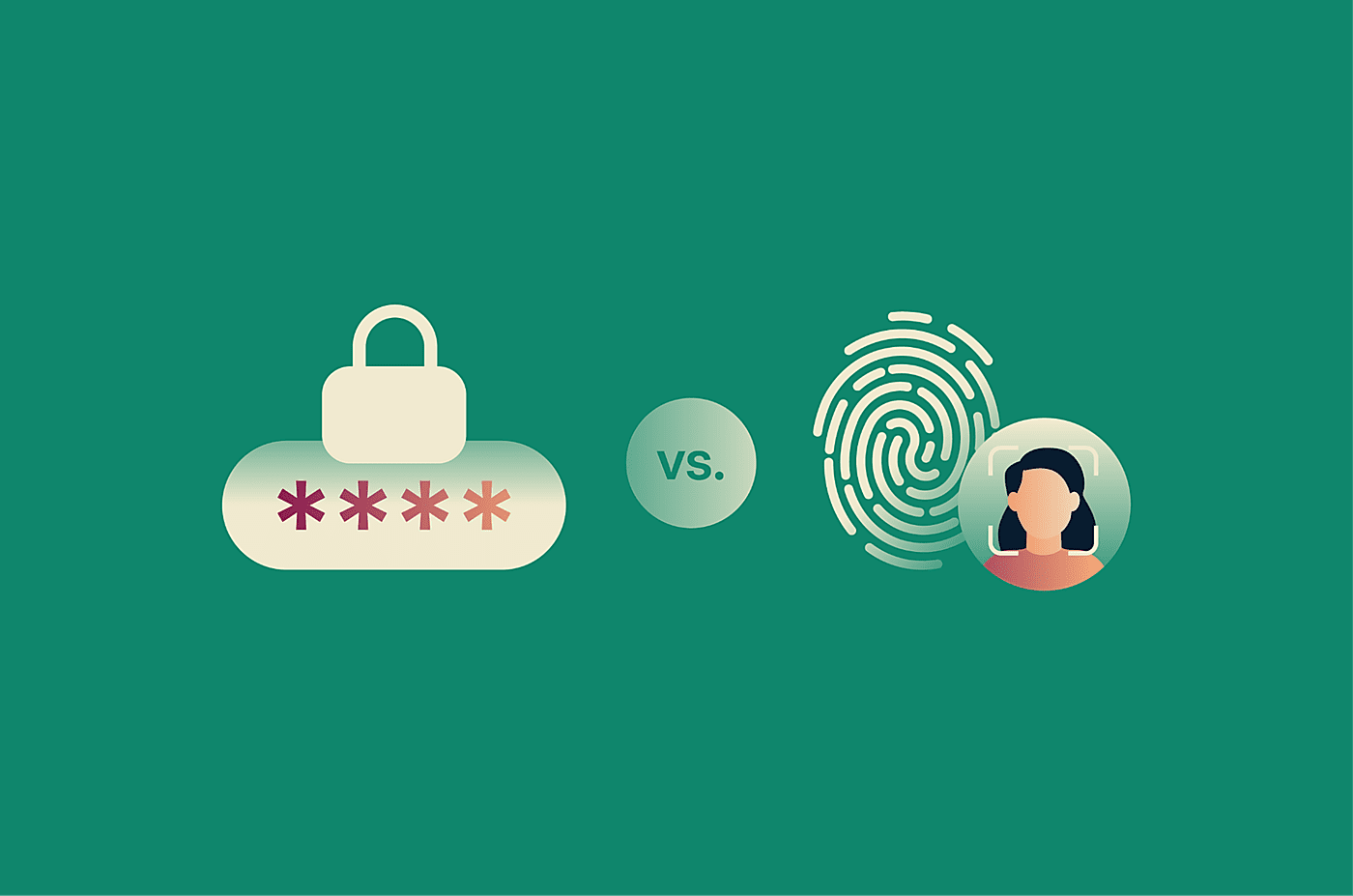
For years, passwords have been the default way to protect online accounts. But as cyberattacks become more sophisticated, passkeys are emerging as an alternative that addresses many of the weaknesses of regular passwords. They’ve also gained support from major tech companies. So, does that mean passkeys are safer, and should they replace your passwords?
Introduction to passkeys and passwords
Passwords and passkeys are both user authentication methods: mechanisms that verify the user's identity before granting access to an account or system. While password-based authentication has dominated digital security for decades, passkeys were designed specifically to address many of its long-standing vulnerabilities.
What passwords do well
A password is a memorized secret: a string of characters a user presents to prove their identity. The service stores it as a salted password hash and grants access when the user's submission matches what's on file. Because it's based on something you know, passwords fall under the knowledge factor category of authentication.
Passwords require no special hardware, work across virtually any platform, and can be created by anyone. That universality explains why they remain the default login method across apps, websites, devices, and online services worldwide.
Two variables determine how hard a password is to guess: its length and the number of different characters it can draw from. The wider the pool of possible characters (lowercase letters, uppercase letters, numbers, symbols ), the more possible combinations exist for any given length.
Security professionals measure this unpredictability as password entropy, expressed in bits: the higher the entropy, the harder the password is to crack through brute force. An 8-character password that uses only lowercase letters has far fewer possible combinations than one that mixes in uppercase, digits, and symbols.
Length, however, contributes more entropy per added character than complexity does. This is why the National Institute of Standards and Technology (NIST) sets the minimum at 15 characters for user-selected passwords. If the password is used only as part of multi-factor authentication (MFA), a minimum of eight characters may be allowed.
It’s also why passphrases are increasingly favored. A passphrase strings together several random words into a single secret that is both long and easier to remember than a jumble of characters, achieving high entropy through length rather than complexity.
Learn more: Passphrase vs. password: Which one gives you better security?
What passkeys change
A passkey is an authentication credential developed under standards set by the Fast IDentity Online (FIDO) Alliance, an industry consortium dedicated to reducing reliance on passwords.
Rather than a shared secret, passkeys use asymmetric (public-key) encryption. When registering with a service, the user's device generates a unique key pair: a private key that remains secure on the device (or in a synced credential store) and a public key shared with the service. At login, the service sends a cryptographic challenge, the device signs it with the private key, and the service verifies the signature (without the private key ever leaving the user's side). A separate key pair is generated for each service.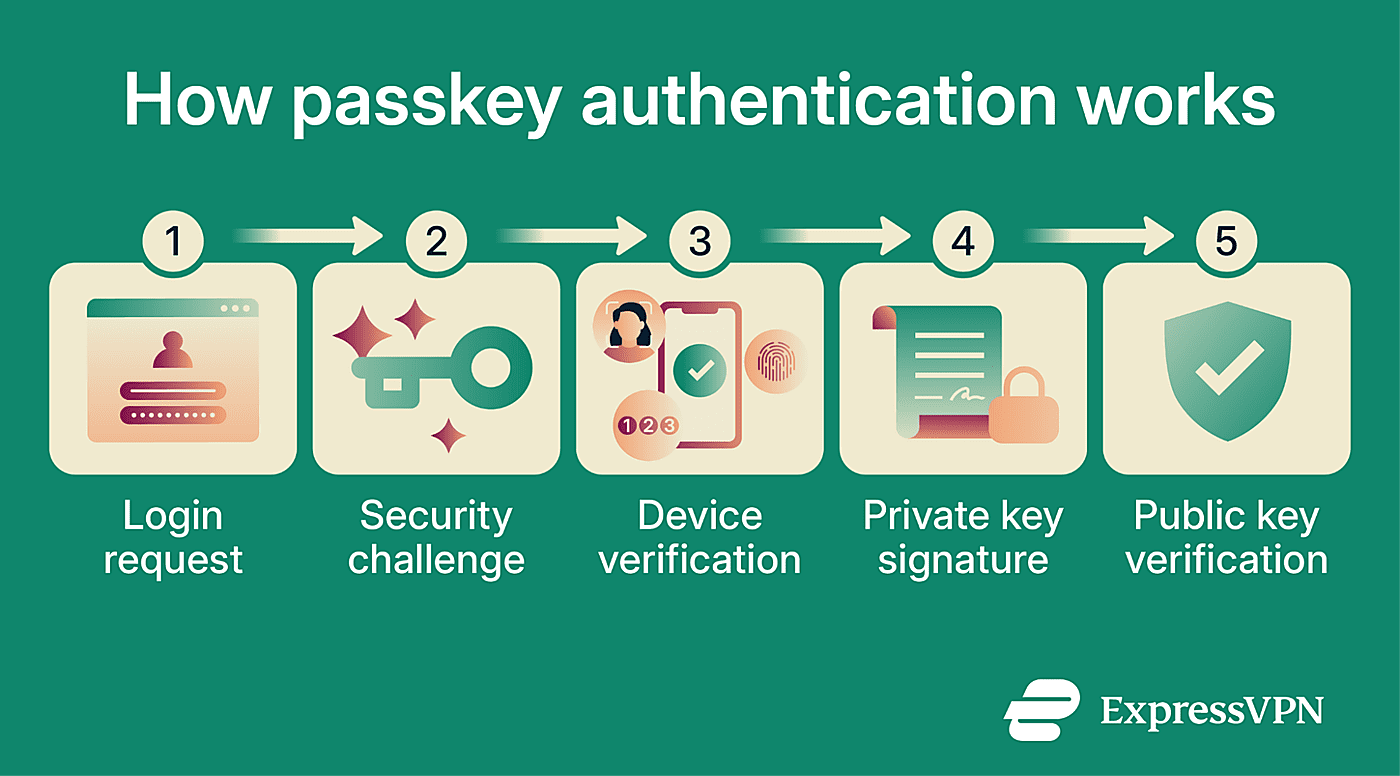
This mechanism is defined by FIDO2 (the open standard underpinning passkeys), which combines two specifications: Web Authentication (WebAuthn), a browser-facing API, and Client-to-Authenticator Protocol (CTAP) 2, which handles communication between the browser and the authenticator device.
Passkeys also combine multiple authentication factors in a single step: the cryptographic key on the device (something you have) plus a PIN, fingerprint, face scan, or device password when user verification is required (something you know or are). This makes them stronger than a simple possession check and more phishing-resistant than a standalone password.
Credential managers and platform passkey providers, such as Apple iCloud Keychain, Google Password Manager, Microsoft Password Manager, and Microsoft Authenticator in supported work or school environments, can store passkeys and reduce the need to memorize separate credentials for each account.
With 5 billion passkeys now in active use and 75% of consumers having enabled them on at least some accounts, according to the FIDO Alliance's 2026 Global Consumer and Workforce Report, passkeys are no longer an emerging technology; they're mainstream.
Key differences between passkeys and passwords
On the surface, the biometric or PIN prompt that passkeys use may look similar to two-factor authentication (2FA). However, passkeys authenticate users in a fundamentally different way: they replace passwords entirely rather than adding a step on top of them.
| Passwords | Passkeys | |
| Authentication | Knowledge-based string of characters | Cryptographic key pair tied to the account and service; stored on a device or in a synced credential manager; can provide MFA-level protection |
| Login method | Type password or use autofill | Verify with local PIN or biometrics; no password entry |
| Phishing resistance | Low: can be stolen via phishing or social engineering | High: credentials are cryptographically bound to the legitimate domain and can't be used on spoofed sites |
| Reuse vulnerability | High: users often reuse passwords for convenience | Low: a unique cryptographic key pair is generated per account |
| Support and compatibility | Universally supported | Widely supported on modern systems, but not yet available on every site or app |
| Recovery options | Typically via email, security questions, or a 2FA challenge | Typically via synced devices, a credential manager, backup security key, or account recovery |
| Vulnerability to database leaks | High: password hashes can be stolen in breaches and may be cracked | Low: the private key is never shared with the service, and the server stores only the public key |
Security comparison: Passkey vs. password
As a form of passwordless authentication, passkeys eliminate several attack vectors to which passwords are inherently vulnerable.
Phishing resistance
Phishing, spoofing, and other social engineering attacks are among the most common methods used to steal user passwords. The human element was present in 60% of breaches analyzed in the 2025 Verizon Data Breach Investigations Report (DBIR).
A typical example is impersonating a service's support team to trick a user into handing over their credentials. Once stolen, a password can be used from any device, often with no further barrier to entry.
Passkeys eliminate password phishing as an attack path: with no password to hand over, there is no credential to steal through a fake login form. What makes them particularly resilient, though, is domain binding: every passkey is cryptographically tied to the specific domain it was registered with. If an attacker lures a user to a spoofed site, the passkey won't activate. If the domain doesn't match the one it was created for, the authentication attempt fails automatically.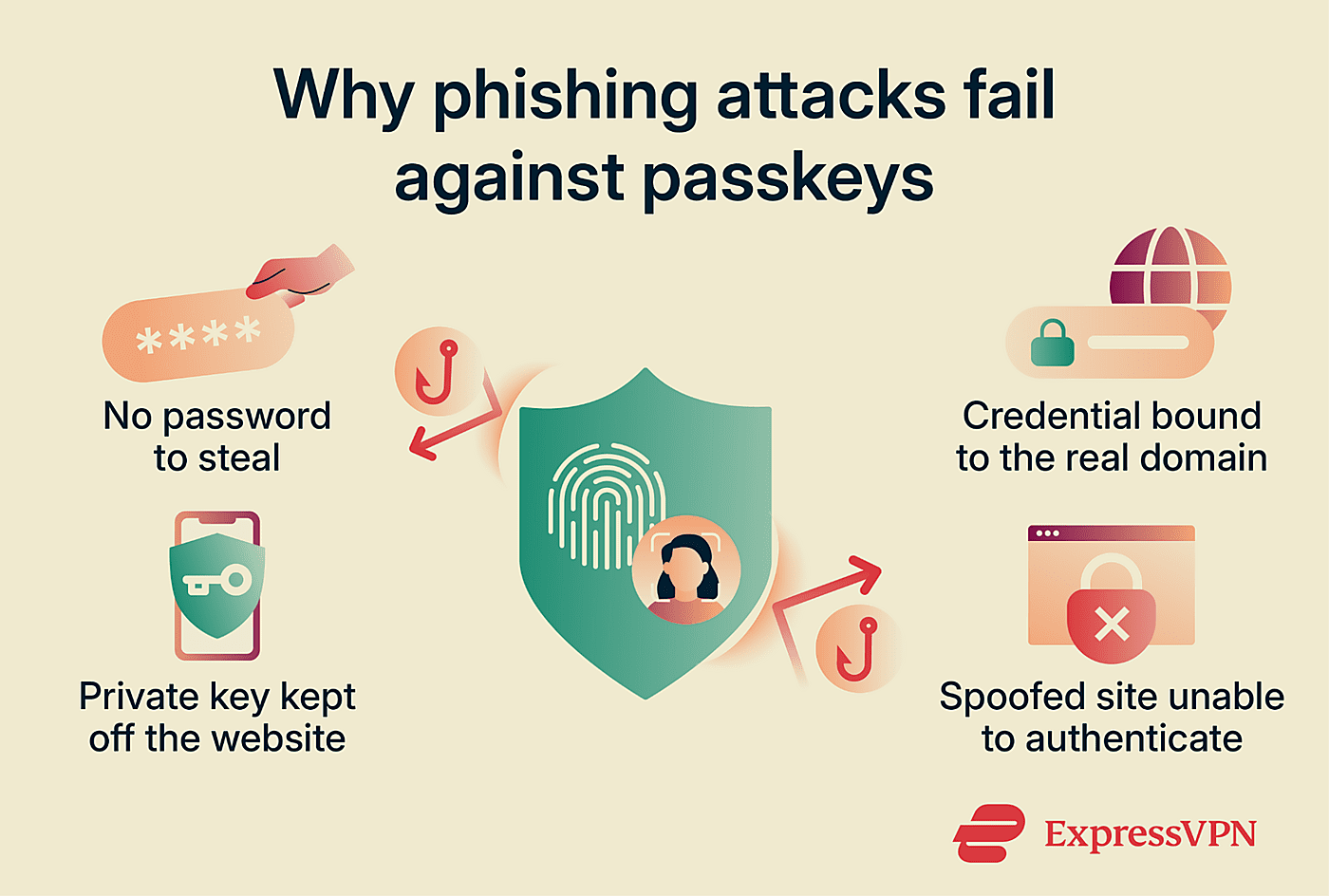
Also read: What is phishing-resistant MFA, and why does it matter?
Brute-force and credential stuffing protection
Brute-force attacks work by systematically trying every possible password combination until one succeeds. Passkeys make this approach obsolete, not because of an extra authentication step, but because there is no password to guess.
Credential stuffing exploits the fact that users tend to reuse passwords across services. The 2025 Verizon DBIR found that stolen credentials accounted for 22% of known initial access vectors in breaches.
With passkeys, reuse is prevented by design: each registration generates a unique credential for that service, so a breach of one account doesn't give an attacker a password they can try elsewhere.
Read more: Password attacks: Common types and how to prevent them.
Data breach exposure
When a service suffers a data breach, attackers may walk away with usernames, contact details, and hashed passwords, which can then be cracked offline and used to carry out account takeovers. Services that support passkeys store only public keys. A stolen database of public keys is useless for logging in, since authentication requires the private key that never left the user's device in the first place.
For users of services that haven't fully eliminated passwords, passkeys still limit the damage: even with a target's username and account details, an attacker can’t access any account that requires passkey authentication without also controlling a registered passkey and passing any required local verification.
Account recovery and device loss risks
Account recovery is a common attack vector. Standard recovery flows, such as email links, SMS codes, and one-time passwords (OTPs), can be intercepted or redirected, potentially allowing an attacker to reset credentials and take over an account.
Passkeys raise the bar here: because authentication requires access to a registered private key, recovery attacks that rely only on intercepting a code or resetting a password are less effective. However, account recovery remains an important risk if a service still allows weaker fallback methods.
Device theft is the most relevant risk with passkeys. However, physical access to a device alone is not usually sufficient; the attacker must also bypass the device's biometric or PIN verification to use any stored passkey. That said, a device with no screen lock or with a PIN known to the attacker reduces this protection significantly.
Passkey usability and user experience
Passkey support varies depending on the device, operating system, browser, and credential manager in use. Different platforms offer different features, compatibility ranges, and authentication methods. In practice, though, widespread adoption has pushed most major implementations toward a more consistent experience.
How to create a passkey
Creating a passkey typically happens through the app or service where the account is hosted. Most platforms that support passkeys (like Apple, Android, and Windows) offer the option under account or security settings, often labeled "create a passkey," "add a passkey," or "add a new sign-in method."
On a Windows PC, for example, Windows Hello handles passkey authentication using the device's biometrics or PIN. A user signing in to a Google account on that PC may be able to register it as a passkey; subsequent logins will prompt Windows Hello verification instead of a password.
The same process applies to smartphones, where the device's native unlock method handles user verification, and to hardware security keys such as a FIDO2 USB key, where authentication is handled by the key's own PIN or biometric sensor.
Where passkeys are stored
Passkeys are generally stored in one of two ways: locally on the device or security key, or in a cloud-based credential store that syncs across devices.
For local storage, modern devices typically use secure hardware or protected system components to isolate and protect the private key. On Windows PCs, passkeys stored with Windows Hello are kept in a secure local credential container and unlocked with the device’s biometrics or PIN. Depending on the device and configuration, this protection may be hardware-backed.
Apple devices use the secure enclave, a dedicated secure subsystem isolated from the main processor. Android devices use a range of hardware security implementations depending on the model, including StrongBox and Trusted Execution Environments (TEE).
For device-bound passkeys, the private key is designed to stay on that device or security key. These passkeys may not survive a device reset, motherboard replacement, or loss of the hardware that stores them.
For synced passkeys (the more common consumer scenario), the credential is stored in a cloud-based manager such as Apple iCloud Keychain, Google Password Manager, Microsoft Password Manager, or a compatible third-party tool, and made available across the user's signed-in devices. These passkeys are more resilient to hardware changes because they can be restored through the credential provider, as long as the user can access and recover that provider account.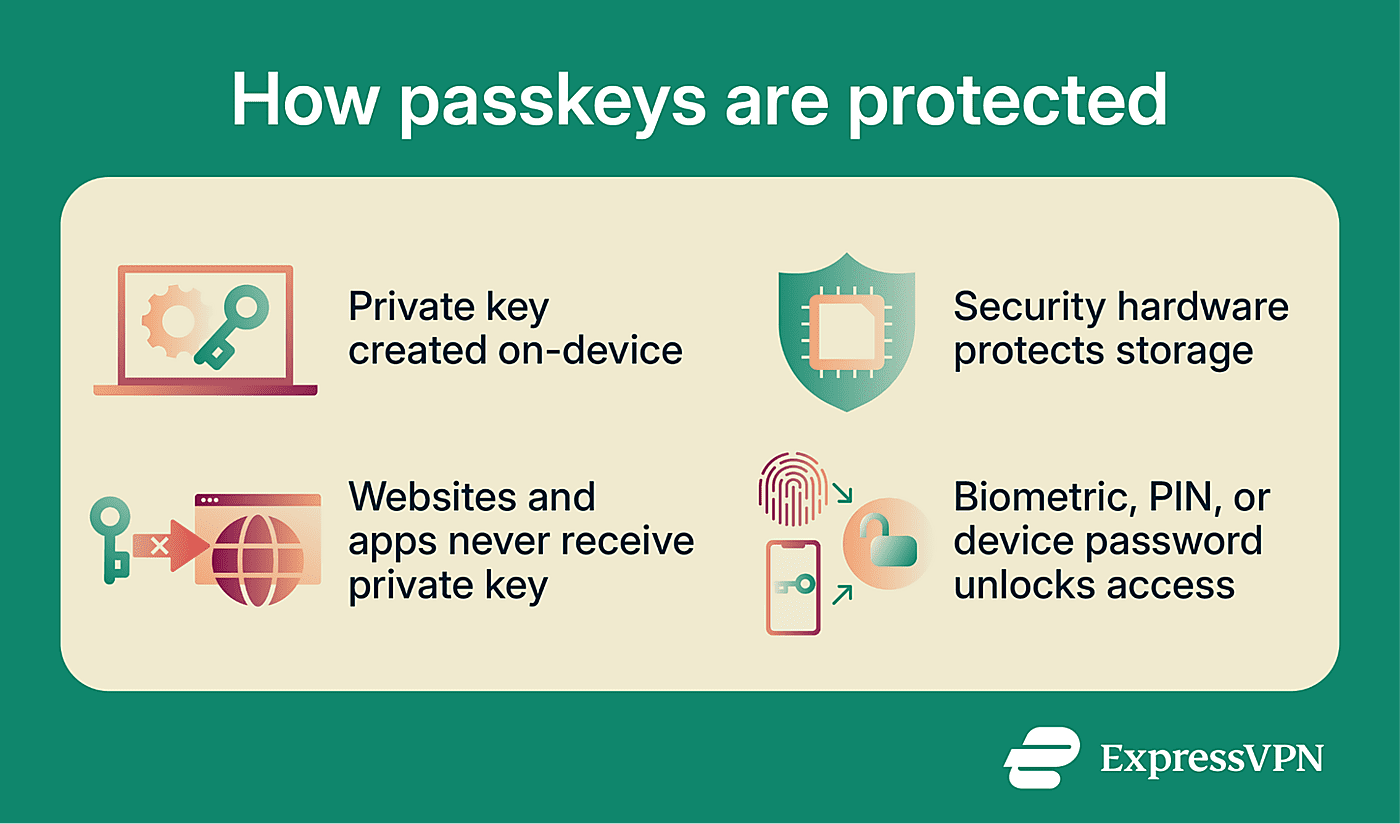
Signing in across devices and browsers
Most passkey services support cross-device authentication, meaning a passkey stored on one device can be used to authorize a login on another. When signing in on a device that already holds the passkey, authentication is completed directly on that device. When signing in on a device without the passkey, the service can prompt the user to approve the login from a nearby trusted device, typically via a Bluetooth-based CTAP2 connection that helps confirm proximity without transmitting the passkey.
For example, a user can use a passkey stored on an Android phone to authenticate a login on a laptop by approving the prompt on the phone; no password or SMS code is required.
Synced passkeys simplify this further: when credentials are available through the user's passkey provider, any signed-in device in that ecosystem can authenticate directly without a separate cross-device handshake.
Many modern operating systems now support passkey management and, in some cases, third-party credential managers, though exact options vary by operating system, browser, app, and provider. Users can typically also add, remove, and manage which devices or passkeys are registered for a given service through that service's security settings.
Passkey drawbacks and adoption gaps
Most modern consumer devices support passkeys in some form, and adoption has risen rapidly. However, some users may still encounter the following challenges:
- Limited website and app support: Not all websites and apps have implemented the WebAuthn/FIDO2 standards that enable passkey authentication. Most users still have accounts on services that don't support passkeys yet, meaning passwords or 2FA remain necessary for those accounts in the interim.
- Inconsistent support across devices and browsers: Older devices may lack the hardware security capabilities required for passkeys, such as Trusted Platform Module (TPM) or secure enclave, or run operating system versions that predate passkey support. Browser implementations also vary: while many modern browsers support WebAuthn, feature parity across versions and platforms is not guaranteed, meaning the passkey experience may differ even on supported services.
- Security concerns on shared and public devices: Users who share a device with others or who use a public computer face distinct risks. On a shared personal device, anyone who can bypass the biometric, PIN, or device password check could authenticate with stored passkeys. On public computers, users should avoid creating or storing passkeys and sign out completely after use.
- Backup, syncing, and recovery limitations: For device-bound passkeys, losing the registered device without a backup means the credential is gone. Recovery requires using a secondary registered device or going through the service's account recovery process, which may fall back on weaker authentication methods. Synced passkeys are more resilient in this regard, as they persist in the cloud across devices. However, they introduce a dependency: if a user loses access to their synced credential account (for example, their Apple ID or Google account), the passkeys stored there may become inaccessible.
When to use passkeys and when passwords still make sense
Passwords and passkeys aren’t mutually exclusive. Most services today use a combination of both: requiring a password as a fallback while allowing users to configure a passkey for future logins.
Where passkeys are supported, they should generally be the first choice, particularly for accounts that handle sensitive information such as banking portals, healthcare services, and work systems. This is especially true for identity-provider or single sign-on (SSO) accounts, such as Google, Apple, Microsoft, or workplace identity systems. Because SSO can grant access across many connected apps and services, a single compromised account can cascade into a much broader breach.
Passwords still have a role in several scenarios:
- For websites, services, and devices that don't yet support passkeys.
- In shared or managed environments where persistent device-linked credentials aren't practical.
- To reassert identity following a security incident or suspicious login activity.
- Where legacy systems, internal policies, or compliance interpretations still require password-based authentication as part of a layered access control model.
In short, passwords remain important as fallback access methods when passkeys aren't supported, devices are lost, or syncing fails.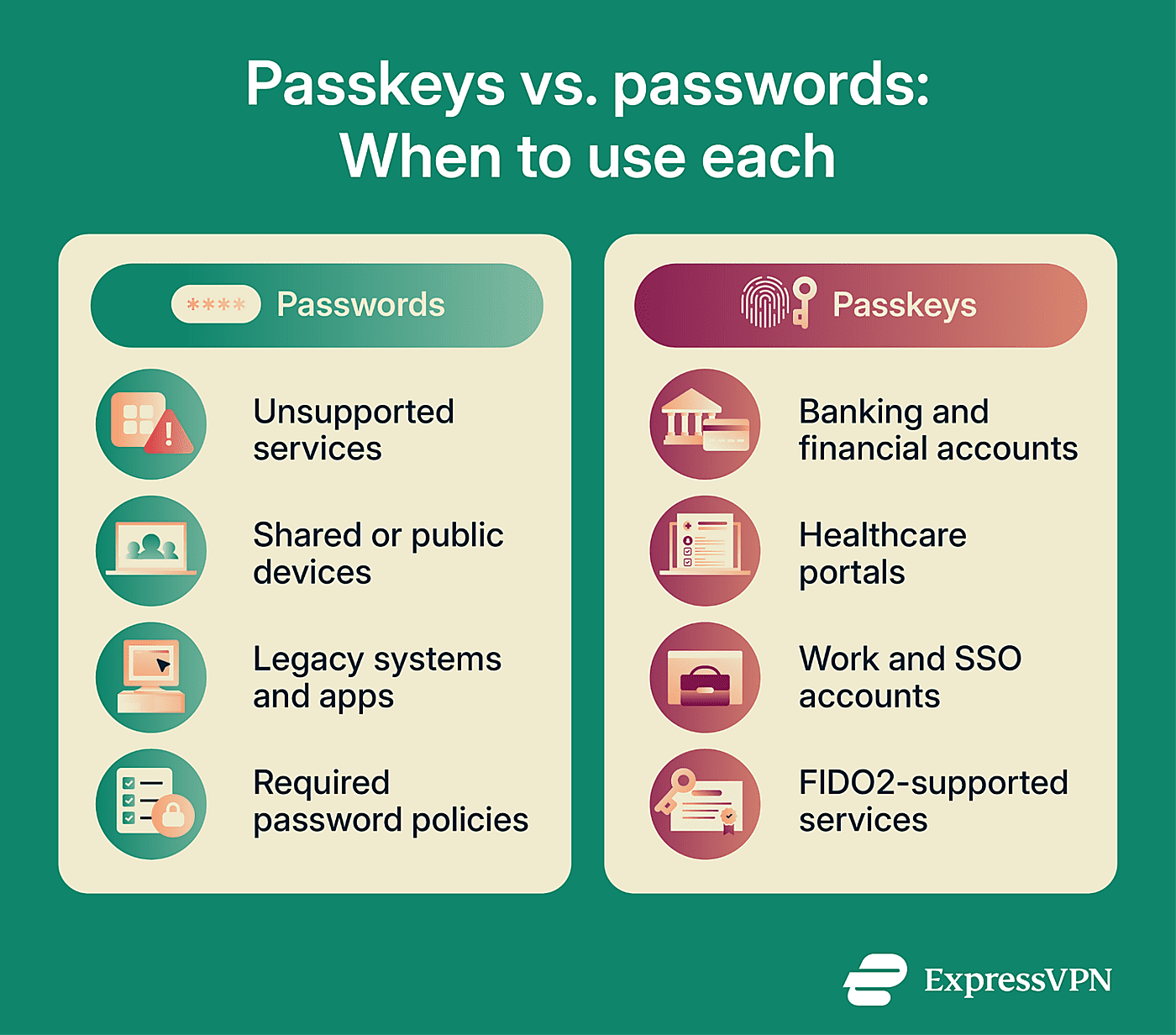
How to move from passwords to passkeys
Switching to passkeys doesn't have to happen all at once. The most practical approach is to enable them gradually, starting with the services where the security benefit is greatest, while keeping passwords as a fallback for services that don't yet support them.
1. Start with high-risk accounts
The best place to start is accounts that would cause the most damage if compromised: email, banking, and any SSO account linked to Google, Apple, or Microsoft, since these often control access to many other services. Once those are secured, passkeys can be added to other accounts at whatever pace feels comfortable.
2. Keep a secure password manager as backup
Not every service supports passkeys yet, so a password manager remains a useful tool for everything else. Some credential managers handle both passkeys and passwords in the same app, which keeps things simple. ExpressVPN's ExpressKeys supports both. For accounts that still require passwords, it can help keep credentials strong and unique.
3. Review recovery options before switching
Before enabling passkeys on an account, it's worth checking that recovery options are in place: a backup device, an up-to-date recovery email, or any other method the service offers. Setting these up in advance means that a lost or replaced device doesn't result in permanent lockout.
Enterprise security and compliance considerations
Password-related threats (phishing, credential stuffing, weak credentials) remain a major source of enterprise risk, and organizations are responding. According to the FIDO Alliance's 2026 Global Consumer and Workforce Report, 68% of surveyed organizations with 500 or more employees are deploying, piloting, or rolling out passkeys for employee authentication.
For passkey adoption to work smoothly in enterprise environments, the organization's identity and access management (IAM) platform needs to support FIDO2/WebAuthn standards and integrate with existing SSO systems. Most enterprises will need to support both passkeys and passwords during the transition, since legacy systems may not yet support FIDO2.
On the compliance side, NIST formally classifies synced passkeys as Authentication Assurance Level 2 (AAL2) authenticators, meaning they meet the standard's requirements for MFA when implemented with appropriate controls, but they don't meet AAL3 because syncing means the key can be exported. The Payment Card Industry Security Standard Council (PCI SSC) FAQ 1595 confirms that synced passkeys implemented in accordance with FIDO2 requirements are acceptable for phishing-resistant authentication under PCI Data Security Standard (DSS) Requirement 8.4.2. Organizations should still assess whether their full authentication flow meets all applicable PCI DSS MFA requirements.
A successful rollout also depends on user readiness. The FIDO Alliance's Passkey Central offers practical rollout guides covering gradual and rapid deployment, including how to keep existing sign-in mechanisms during the transition and plan future phase-outs. Recovery paths should be established before removing password access, and organizations may choose to prioritize high-risk or high-impact accounts before expanding company-wide.
FAQ
Can passkeys be used without biometrics?
Do passkeys work if I change phones?
Can someone use my passkey if they steal my device?
Do passkeys remove the need for two-factor authentication?
Are passkeys safe to sync through Apple, Google, or Microsoft?
Why do some websites still require passwords?
Can businesses require employees to use passkeys?