Two-factor authentication (2FA) adds an extra layer of protection to your online accounts, preventing unauthorized access even if your passwords are compromised.
With Keys, you can add 2FA codes to compatible accounts on the ExpressKeys app for Android and iOS, and the ExpressKeys Chrome extension. Similar to authentication apps like Authy, Keys can easily generate 2FA codes—also known as time-based one-time passwords (TOTPs)—for websites or apps with 2FA enabled.
Jump to…
ExpressKeys Chrome extension
ExpressKeys for Android
ExpressKeys for iOS
Use your 2FA codes
ExpressKeys Chrome extension
How to enable 2FA on a website or app
- Go to the website or app’s security settings and enable 2FA. If you have trouble locating the 2FA setting, search 2fa.directory for the website or app and you will find detailed instructions under Docs.
- Once you’ve obtained the setup key, open the ExpressKeys Chrome browser extension.
- Unlock the password manager.
How to add a 2FA code to a new login
- Click

 > Add New Login > Set Up 2FA Verification Code.
 - Follow the onscreen instructions to enter the setup key.
- To complete the setup, the website or app will ask you to enter a one-time password or verification code. Copy and paste it from ExpressKeys or enter it manually.
How to add a 2FA code to an existing login
- Click the login you want to add 2FA to and select Edit > Set Up 2FRA Verification Code.
- Follow the onscreen instructions to enter the setup key.
- To complete the setup, the website or app will ask you to enter a one-time password or verification code. Copy and paste it from ExpressKeys or enter it manually.
Need help? Contact our Support Team for immediate assistance.
ExpressKeys for Android
How to enable 2FA on a website or app
- Go to the website or app’s security settings and enable 2FA. If you have trouble locating the 2FA setting, search 2fa.directory for the website or app and you will find detailed instructions under Docs.
- Once you’ve obtained the QR code or setup key, open the ExpressKeys app on your Android device. (Ensure the QR code is displayed on a separate device from the device with ExpressKeys.)
- Unlock the password manager.
How to add a 2FA code to a new login
- Tap
 .
.
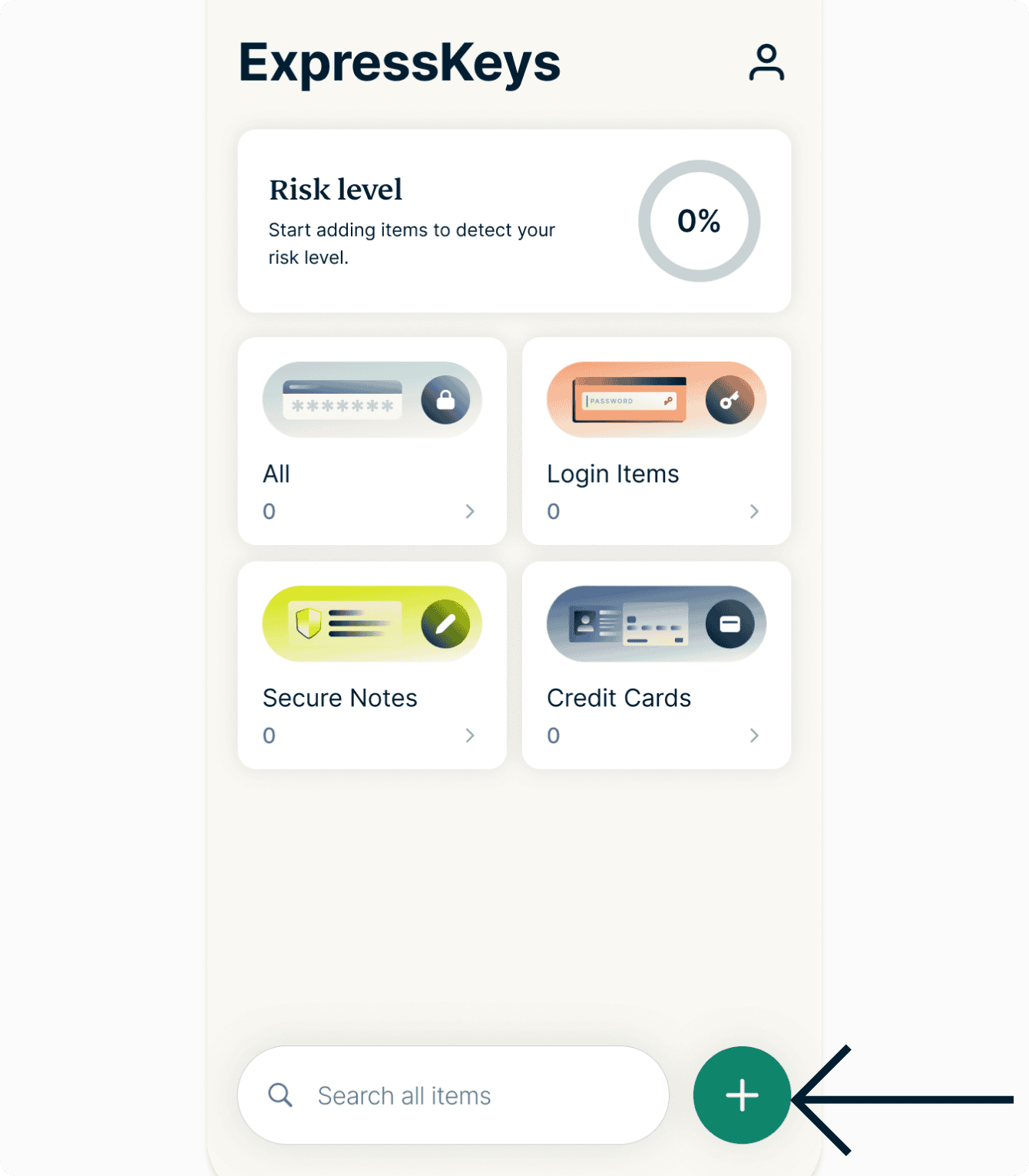

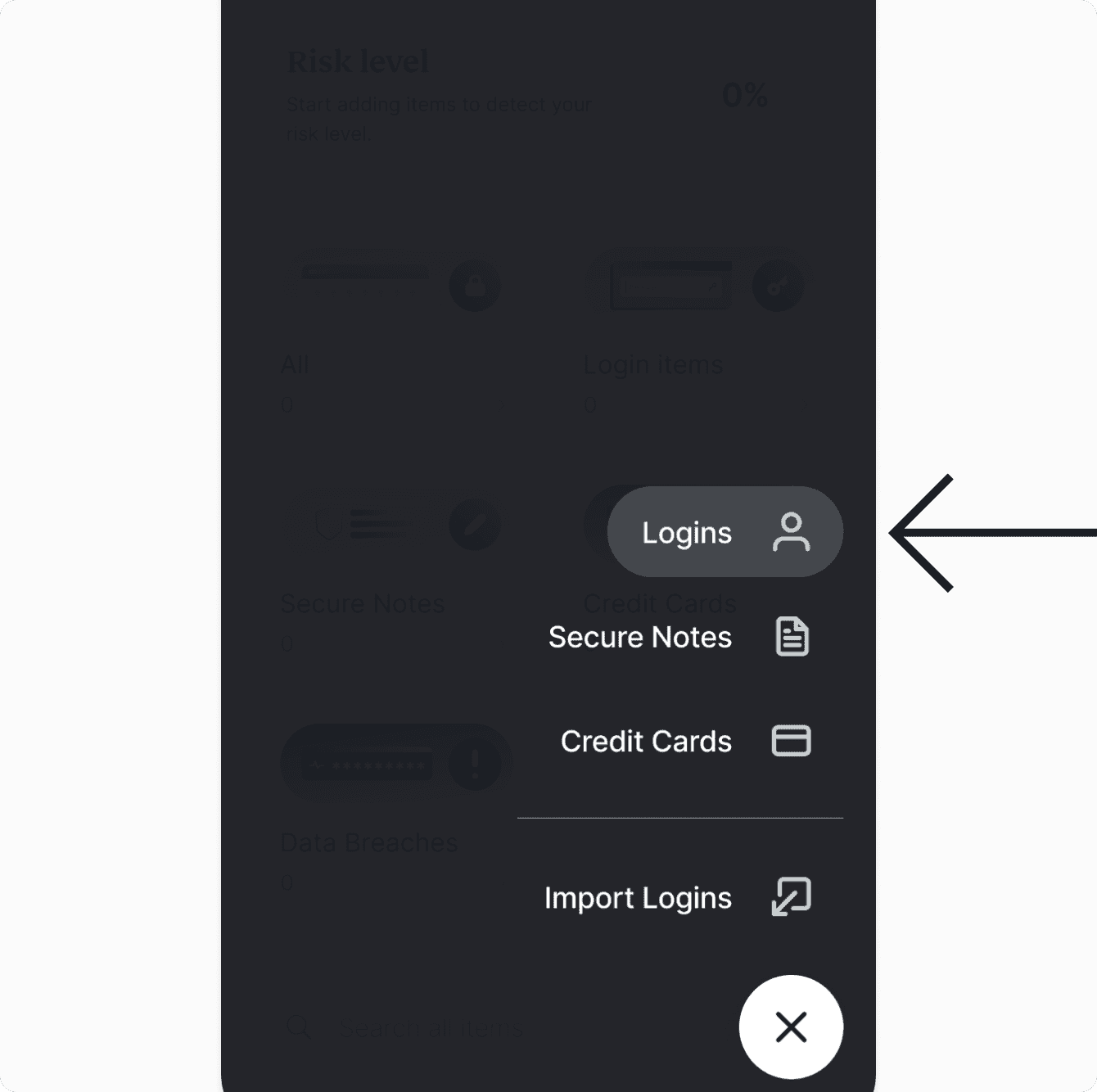
- Tap Logins.

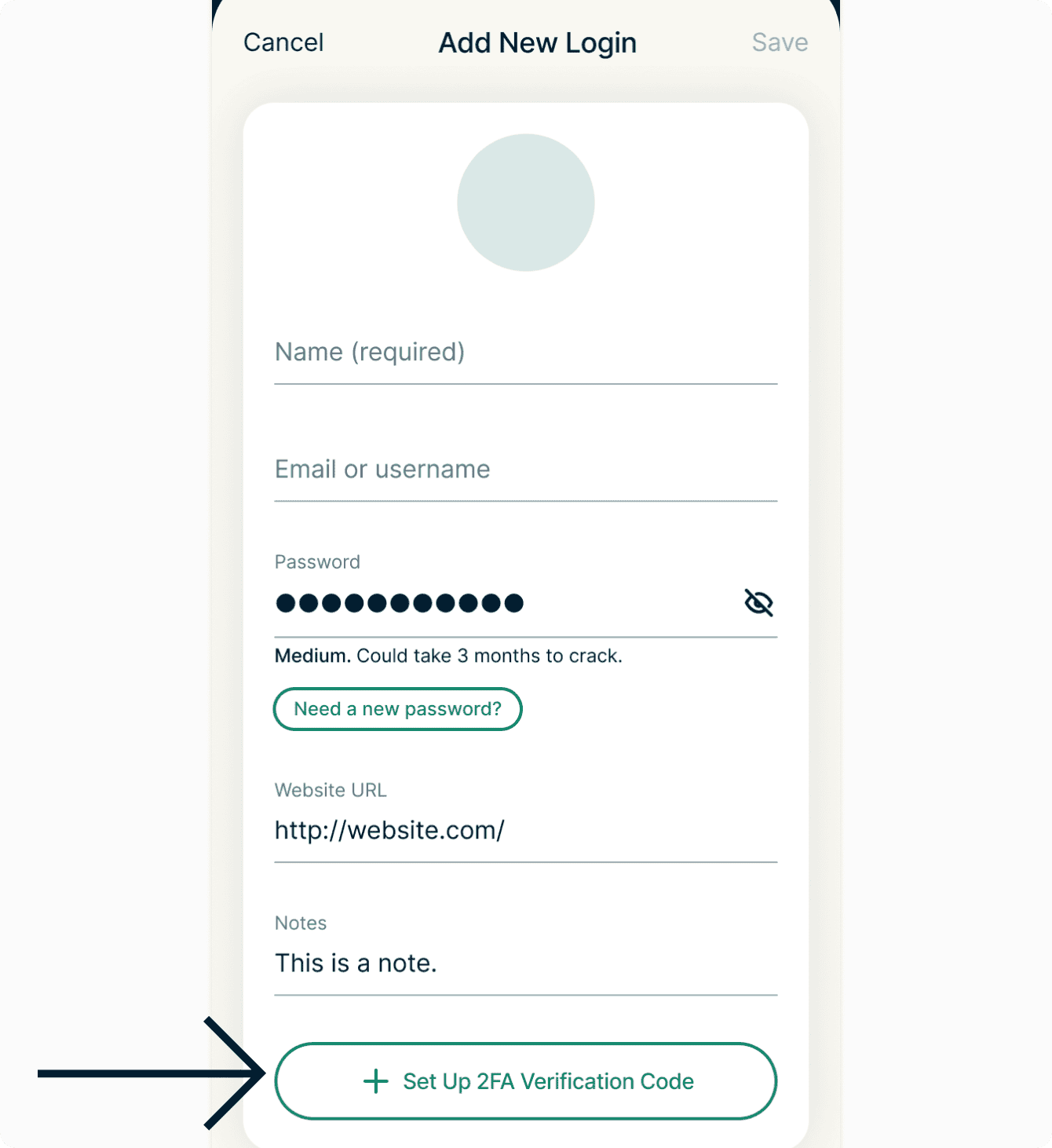
- Tap Set Up 2FA Verification Code.

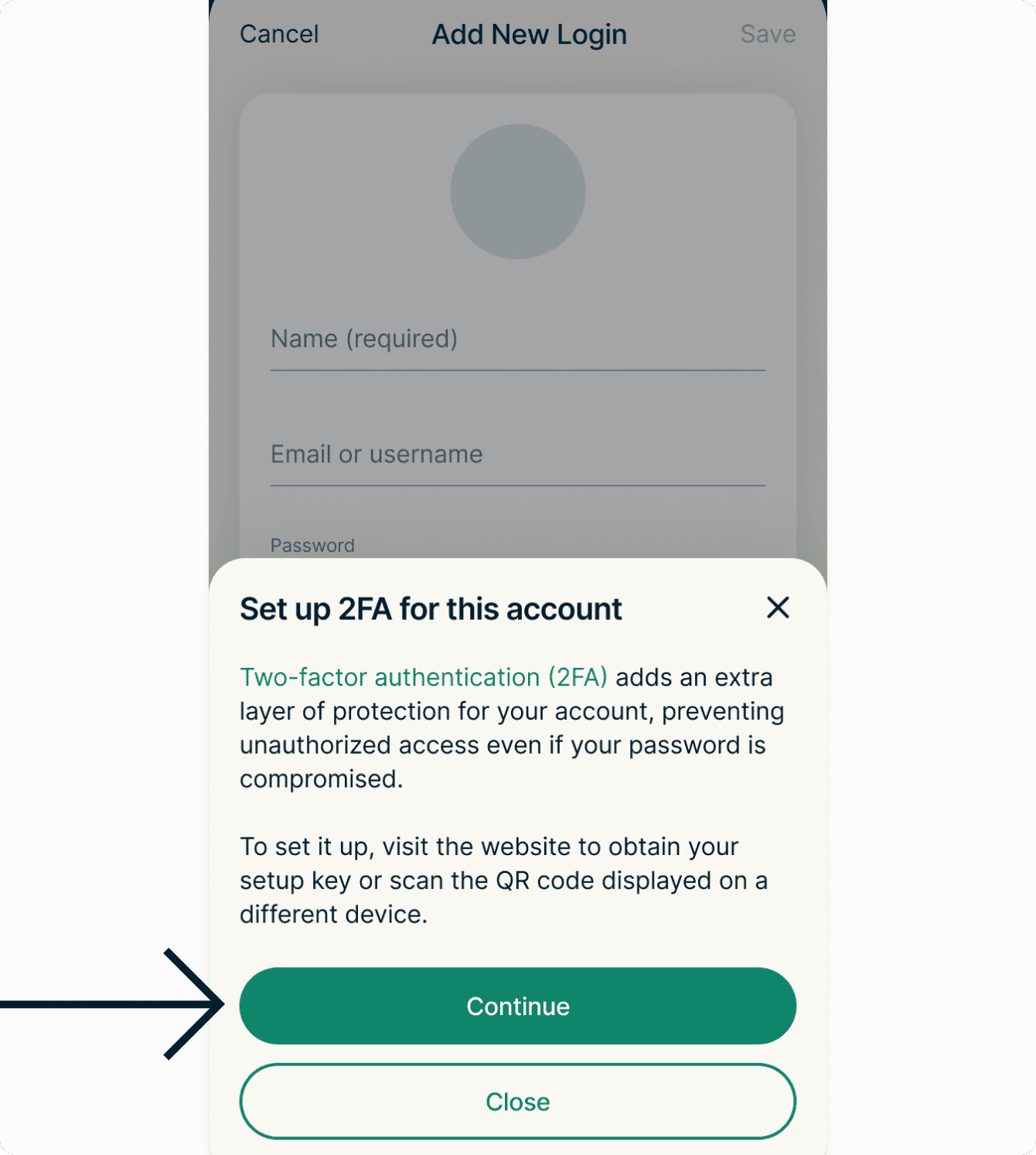
- Tap Continue.

- Follow the onscreen instructions to enter the setup key and or scan the QR code.
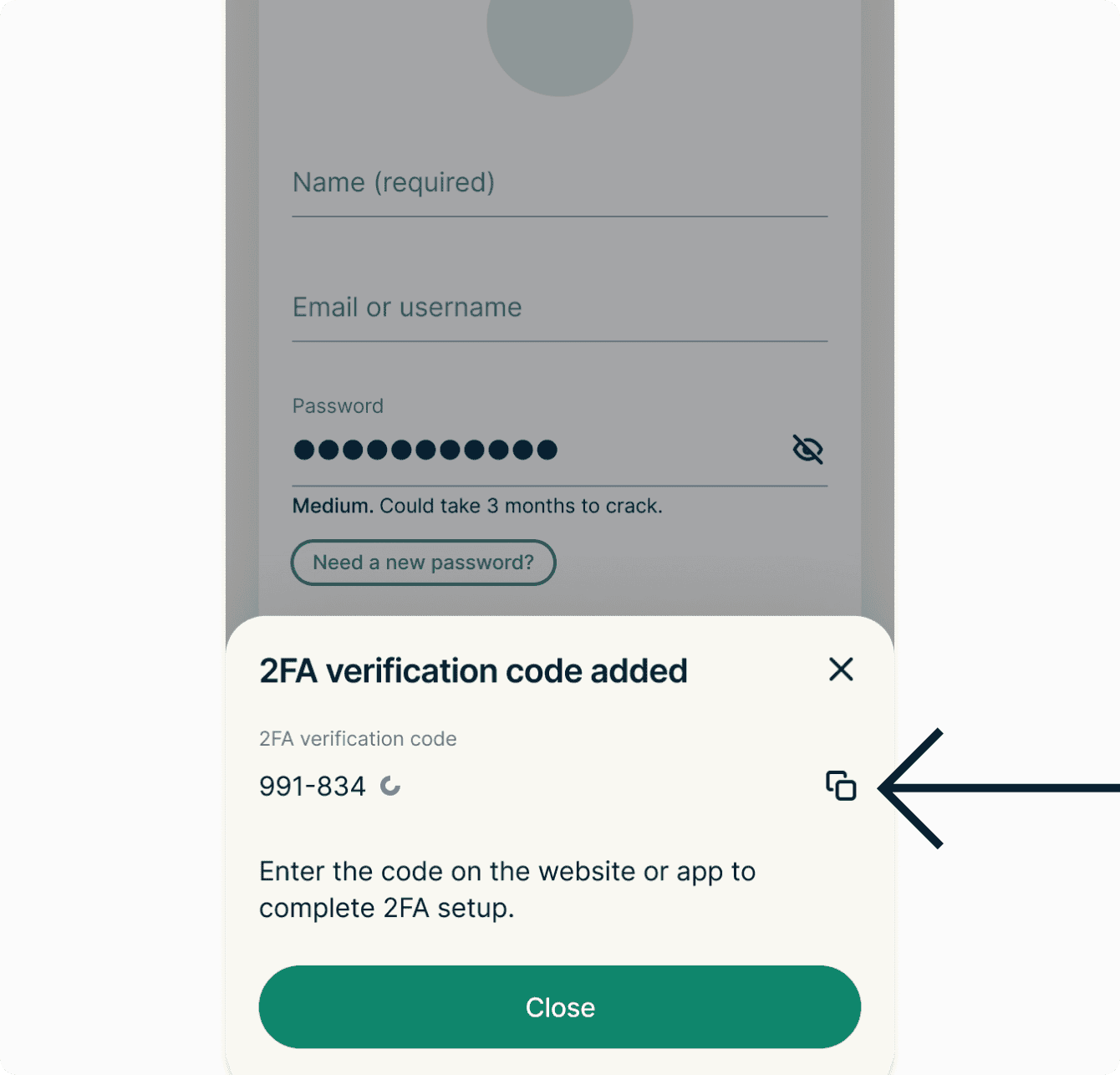
- To complete the setup, the website or app will ask you to enter a one-time password or verification code. Copy and paste it from ExpressKeys or enter it manually.

How to add a 2FA code to an existing login
- Tap the login and select Edit > Set Up 2FA Verification Code.
- Follow the onscreen instructions to enter the setup key or scan the QR code.
- To complete the setup, the website or app will ask you to enter a one-time password or verification code. Copy and paste it from ExpressKeys or enter it manually.
Need help? Contact our Support Team for immediate assistance.
ExpressKeys for iOS
How to enable 2FA on a website or app
- Go to the website or app’s security settings and enable 2FA. If you have trouble locating the 2FA setting, search 2fa.directory for the website or app and you will find detailed instructions under Docs.
- Once you’ve obtained the QR code or setup key, open the ExpressKeys app on your iOS device. (Ensure the QR code is displayed on a separate device from the device with ExpressKeys.)
- Unlock the password manager.
How to add a 2FA code to a new login
- Tap .
- Tap Logins.
- Tap Set Up 2FA Verification Code.
- Tap Continue.
- Follow the onscreen instructions to enter the setup key or scan the QR code.
- To complete the setup, the website or app will ask you to enter a one-time password or verification code. Copy and paste it from ExpressKeys or enter it manually.
How to add a 2FA code to an existing login
- Tap the login and select Edit > Set Up 2FA Verification Code.
- Follow the onscreen instructions to enter the setup key or scan the QR code.
- To complete the setup, the website or app will ask you to enter a one-time password or verification code. Copy and paste it from ExpressKeys or enter it manually.
Need help? Contact our Support Team for immediate assistance.
Use your 2FA codes
If autofill is enabled, Keys will suggest to fill in your username, password, and 2FA code on websites and apps with two-factor authentication.
You can also view and copy 2FA codes in the ExpressKeys app for iOS and Android, and in the ExpressKeys Chrome browser extension.
Need help? Contact our Support Team for immediate assistance.