How to clear your browser cache on any device



If a website won’t load properly, looks outdated, or keeps showing errors, clearing your cache is often the fastest fix. The process is quick and easy, but the steps differ depending on your browser and device. Clear the wrong option, and you could accidentally remove cookies or saved data you meant to keep.
In this guide, you’ll find clear, device-specific instructions for Chrome, Firefox, Safari, Microsoft Edge, and Opera on desktop and mobile. Follow the section that matches your setup to refresh your browser safely and correctly.
What is a browser cache?
A browser cache is a temporary storage space on your device that keeps copies of website files so they don’t have to be downloaded again each time you visit. This includes:
- Images such as logos, graphics, icons, and background visuals.
- CSS files that control layout, colors, fonts, spacing, and overall styling.
- JavaScript files that enable interactive features like menus, forms, and dynamic content.
- Fonts and certain multimedia elements, including web fonts, video, and audio files.
When you revisit a page, the browser checks whether it already has a valid copy of these files. If it does, it loads them from your device instead of requesting them from the web server, which makes the page load faster and reduces data usage.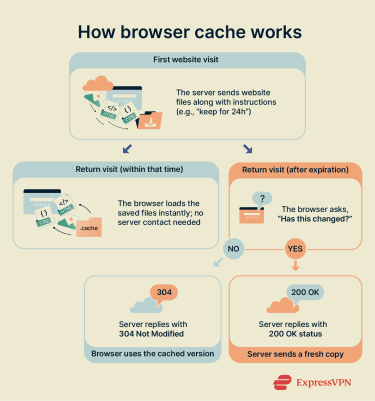
Cache vs cookies: key differences
Although both deal with browser data, caches and cookies store different information and have different purposes.
The cache stores website resources to speed up page loading and reduce repeated downloads. Cookies are small text files that a website saves on your device that store user-related data such as login sessions, preferences, and shopping cart details.
Because cookies contain user-specific data, they can be used for cross-site tracking. Cached files, by contrast, typically don’t contain personal identifiers or track user behavior.
| Browser cache | Cookies | |
| What it stores | Website files (images, CSS, scripts) | Small text-based user data |
| Main purpose | Faster page loading | Remember user sessions and preferences |
| When deleted | Removes saved site files | Resets settings and may log you out |
| Used for tracking? | Not typically | May be used for tracking |
When you should clear your cache
Your browser cache stores saved website files to make pages load faster. Most of the time, this works smoothly in the background and doesn’t require any action. However, because the cache relies on stored copies of site resources, it can occasionally cause issues when those files become outdated or corrupted.
- When a site looks broken or outdated: If a page loads incorrectly or shows an older version of content, your browser may be using cached files instead of downloading the latest ones. Clearing the cache removes those saved copies so fresh content can load.
- When features stop working properly: If login pages, forms, or interactive elements stop responding, cached scripts or styling files may no longer match the site’s current version. Clearing the cache forces the browser to retrieve updated resources.
- When testing or managing website changes: If you’re updating a site or waiting for changes to appear, cached files may prevent you from seeing the latest version. Clearing the cache ensures you’re viewing the most recent files from the server.
- To free up space on mobile devices: On phones and tablets, cached data can accumulate over time. If your Android or iPhone device storage is nearly full, clearing the browser cache can help recover some space, especially if you often browse media-heavy websites.
Tips: Before you clear your browser cache
Clearing your cache is simple, but it’s worth checking a few things first so you don’t remove more data than you intend to.
Make sure you’re only clearing cached files
Browsers often group cache, cookies, and other data in the same “Clear browsing data” menu, so it’s important to check what’s selected before confirming.
To remove cache only, ensure that only the “Cached images and files” box is selected. Leave options like cookies, passwords, and autofill data unchecked if you want to keep them.
Choose the right time range
Most browsers let you select how much data to delete. Common options include the last hour, the last 24 hours, the last seven days, and all time.
If you’re troubleshooting a recent issue, you usually don’t need to delete everything. Selecting a shorter time range can fix the problem without removing older saved data. However, if a site hasn’t worked properly for weeks or you want to fully refresh your browser, choosing “All time” might make more sense.
Clear data for one site if needed
Most modern browsers let you remove stored data for a single site, clear site-specific cookies and cache, or reset permissions for just one domain. This is often the fastest solution if a specific page won’t load or looks broken, instead of wiping everything.
How to clear your browser cache on different devices
The exact steps for clearing your browser cache depend on the browser and the device you’re using. Below, you’ll find instructions for popular browsers on Windows and Mac, Android, and iPhone or iPad.
Clear cache in Chrome
Chrome makes it easy to clear cached images and files on desktop and mobile.
Desktop
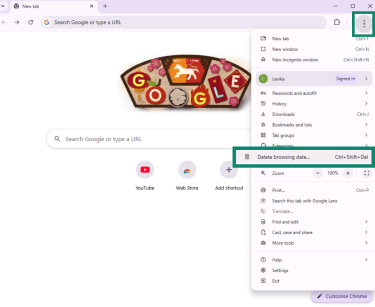
- Open Chrome, click the three-dot menu in the top-right corner, and select Delete browsing data.
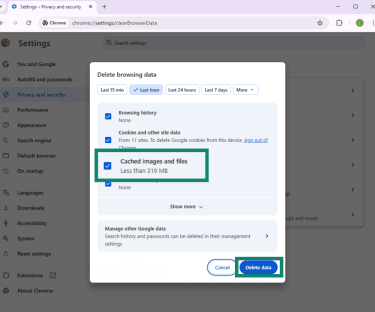
- Uncheck everything except Cached images and files (unless you also want to remove your browsing history and cookies) and click Delete data.
Android
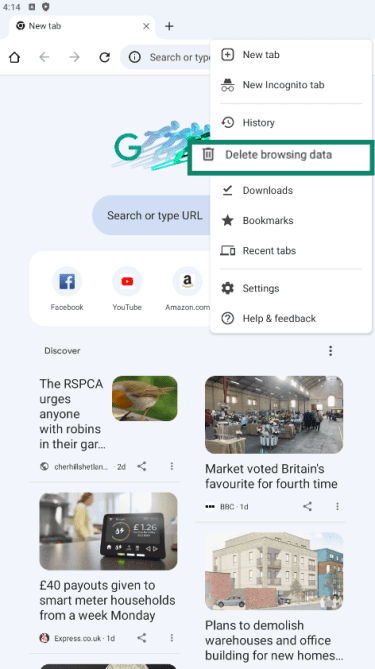
- Open Chrome and tap the three-dot menu in the top-right corner to open the dropdown menu. Select Delete browsing data.
- Choose More options to customize your data deletion.
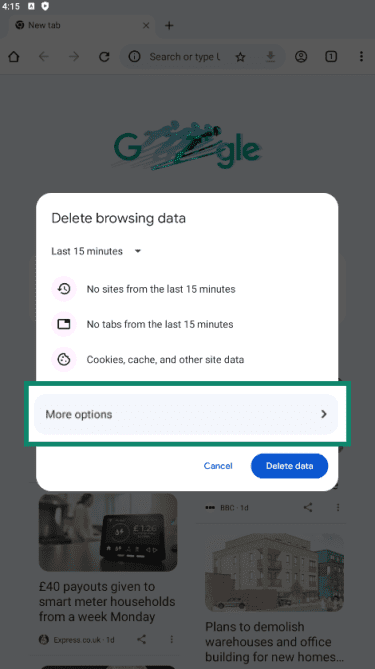
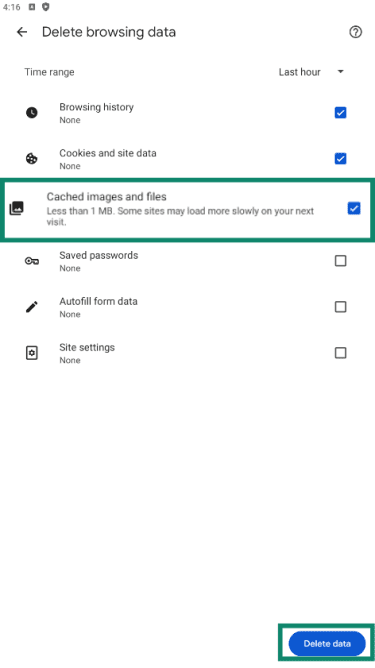
- Check the box next to Cached images and files and make sure everything else is unchecked. Then, tap Delete data.
iPhone and iPad
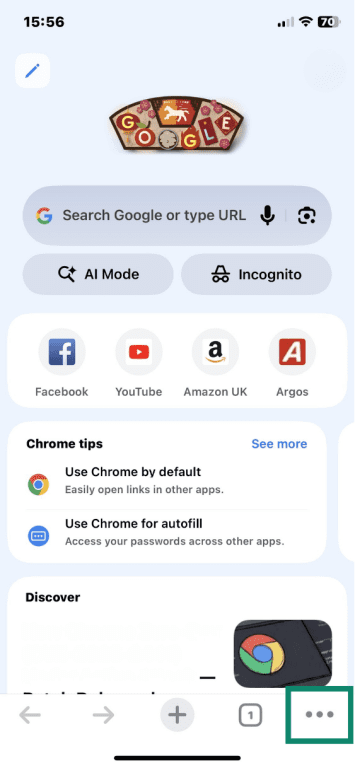
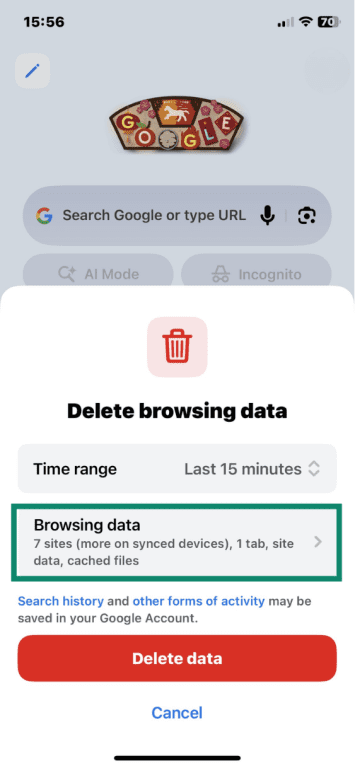
- Open Chrome and tap the three-dot menu in the lower-right corner.
- Scroll the menu up until you see Delete browsing data.
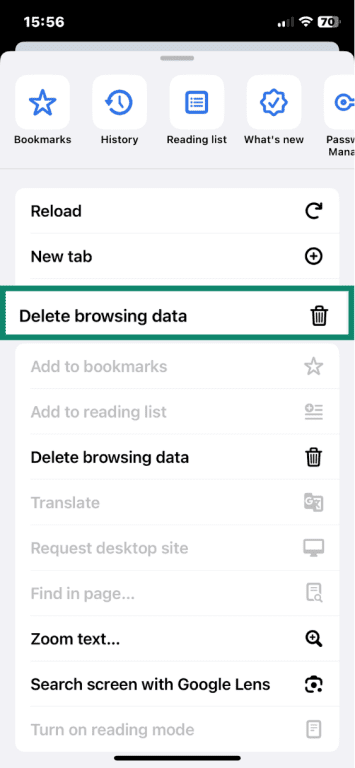
- Tap Browsing data to reveal more customization options.
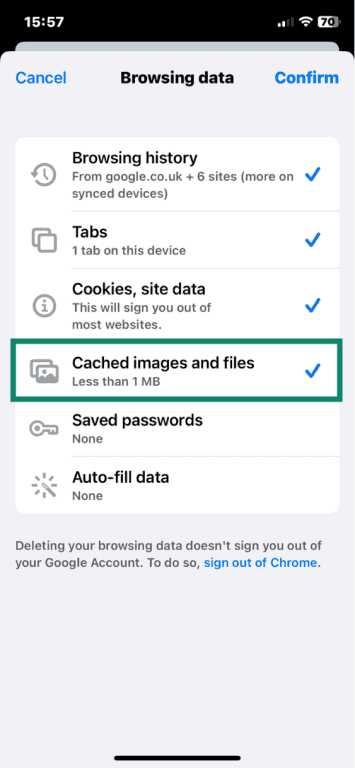
- Make sure Cached images and files is selected, then tap Confirm.
Clear cache in Firefox
Mozilla Firefox also allows you to clear cached website files directly from its settings menu.
Desktop (Windows/Mac)
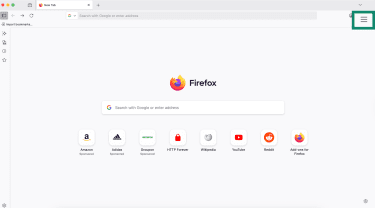
- Open Firefox and click the three-line menu in the top-right corner.
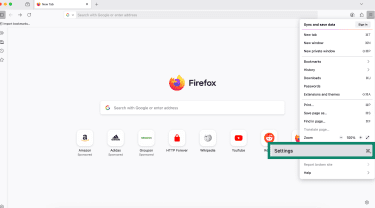
- In the dropdown menu, choose Settings.
- Click Privacy & Security and then Clear Data… next to the Cookies and Site Data option.
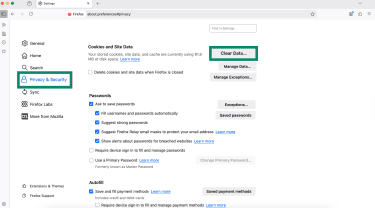
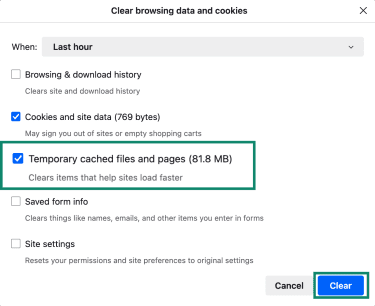
- Make sure Temporary cached files and pages is selected, and click Clear.
Android
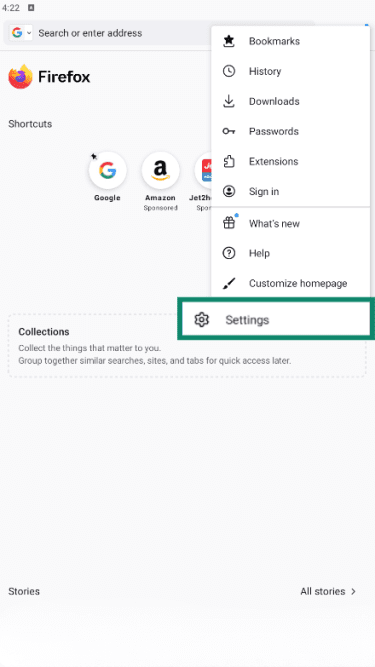
- Open Firefox and tap the three-dot menu in the top-right corner of the screen. From the dropdown menu, select Settings.
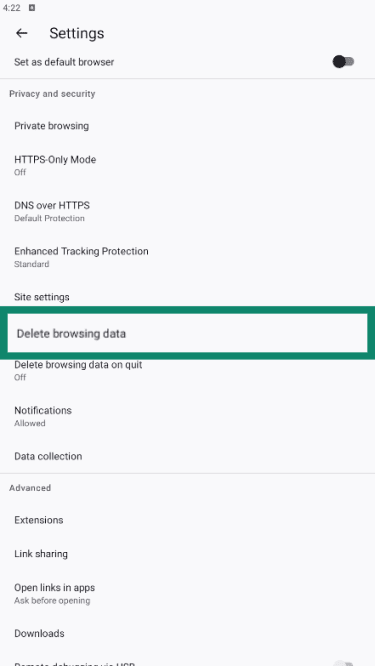
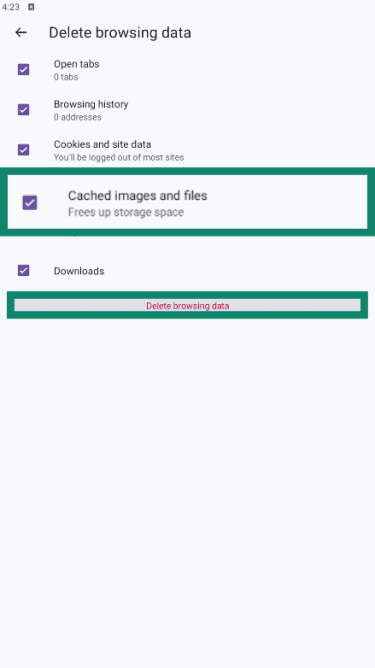
- Tap Delete browsing data.
- Here, ensure Cached images and files is selected, and tap Delete browsing data.
iPhone/iPad
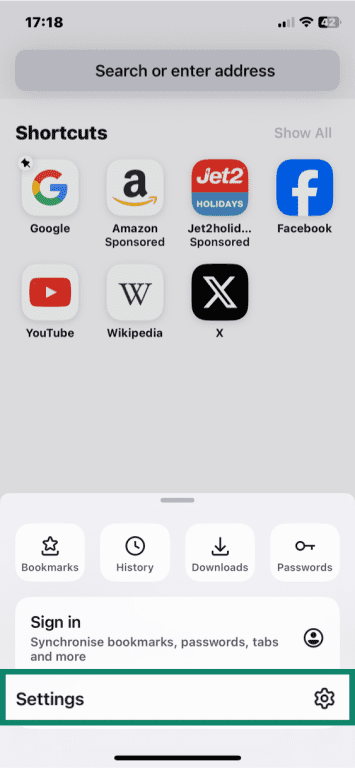
- Open Firefox and tap the three-dot menu at the bottom of the screen.

- On the pop-up menu, select Settings.
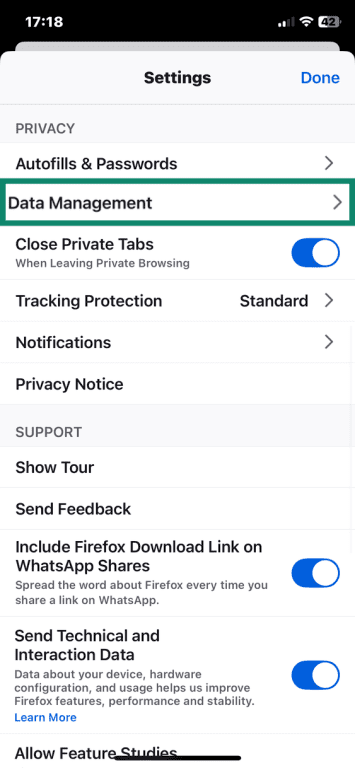
- Scroll down to Privacy and choose Data Management.
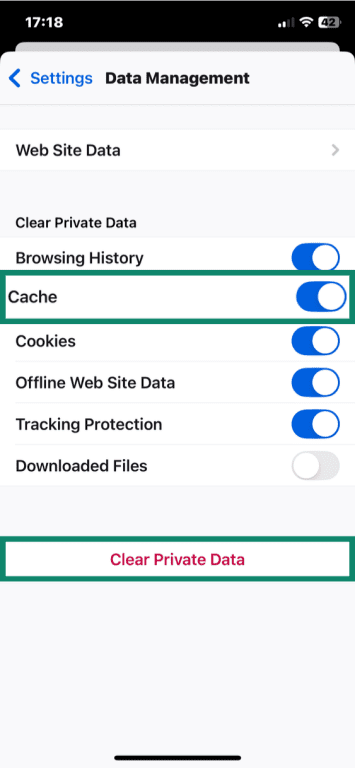
- Toggle the switch next to Cache (if it’s not already) and tap Clear Private Data.
Clear cache in Safari
Safari handles cache slightly differently than other browsers. To remove cached files, you must clear website data, which also deletes browsing history and cookies.
On iPhone/iPad
On iPhone and iPad, clearing cached data is done through the device’s Settings app:
- Open the Settings app and scroll down to Apps.
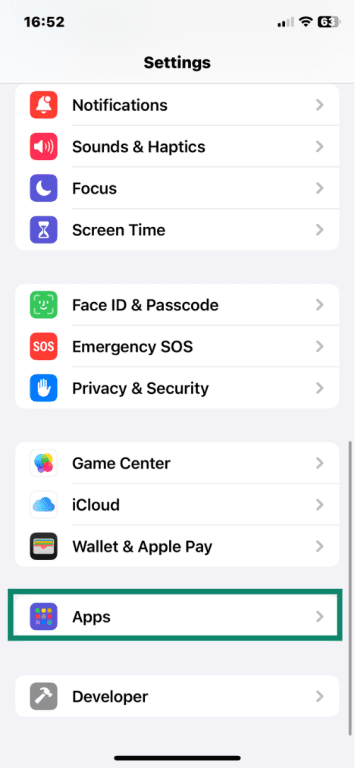
- Tap Safari to open the app.
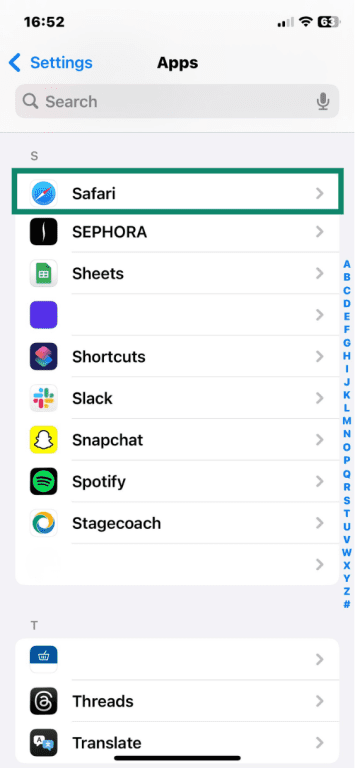
- Scroll down to History and Website Data and tap Clear History and Website Data.
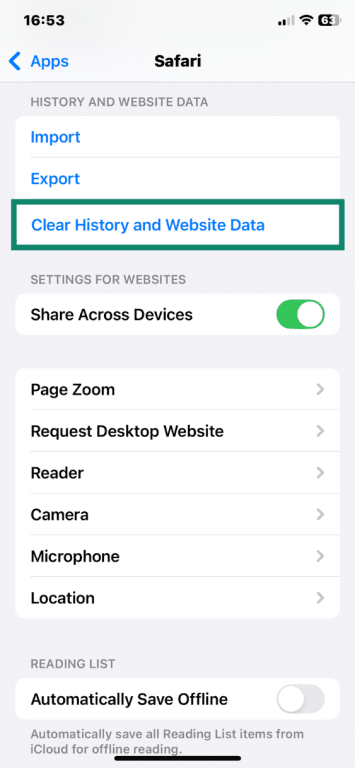
- Choose your desired timeframe and tap Clear History.
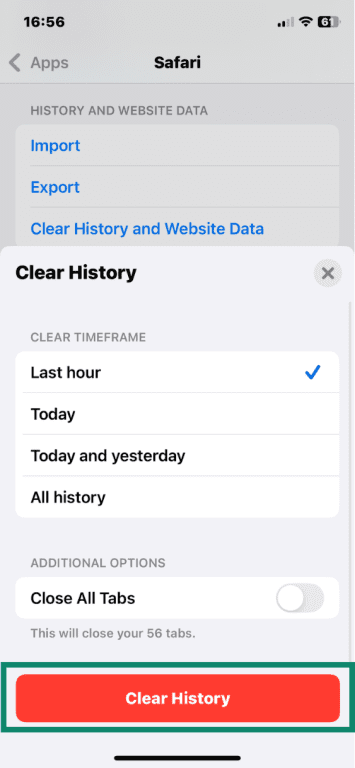
If you only want to remove data for a specific site, go to Settings > Safari > Advanced > Website Data. There, you can tap to edit data for individual sites.
On Mac
On Mac, you can clear cached files directly in Safari:
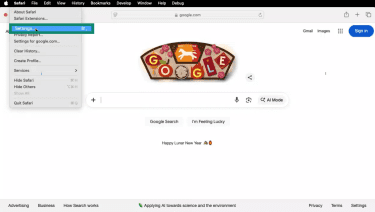
- Open Safari and in the menu bar at the top of the page, click Safari and choose Settings.
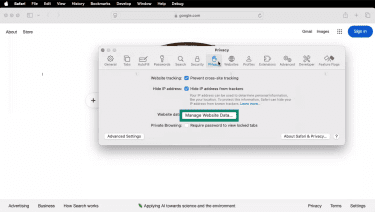
- Click the Privacy tab and choose Manage Website Data.
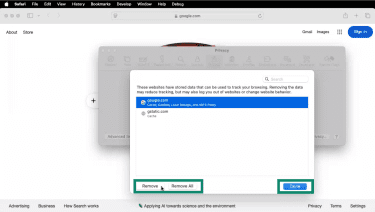
- Select one or more websites from the list, click Remove or Remove All, and then click Done to finish.
Clear cache in Microsoft Edge
Microsoft Edge groups cache, cookies, history, and other data under “Browsing data,” but there’s an option to clear cache data only.
Desktop
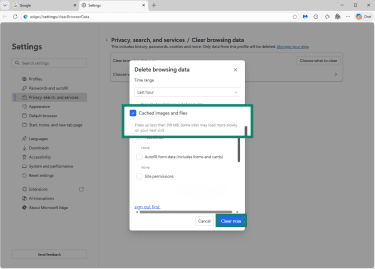
- Open Microsoft Edge, click the three dots in the top-right corner, and in the dropdown menu, choose Delete browsing data.
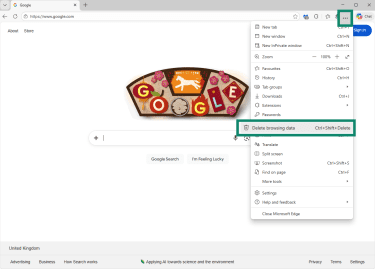
- Select Cached images and files and click Clear now to confirm.
Android
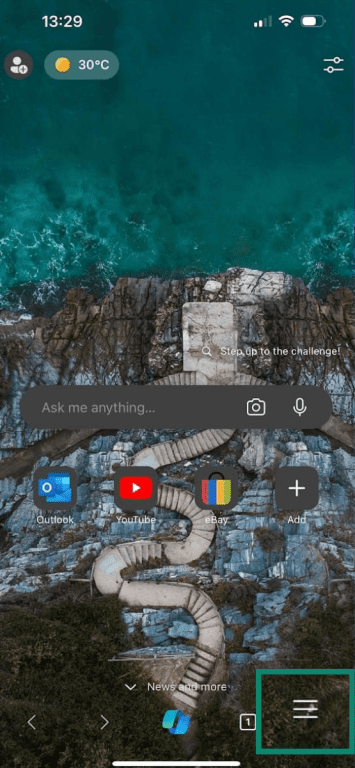
- Open Edge and tap the three-line icon in the bottom-right corner.
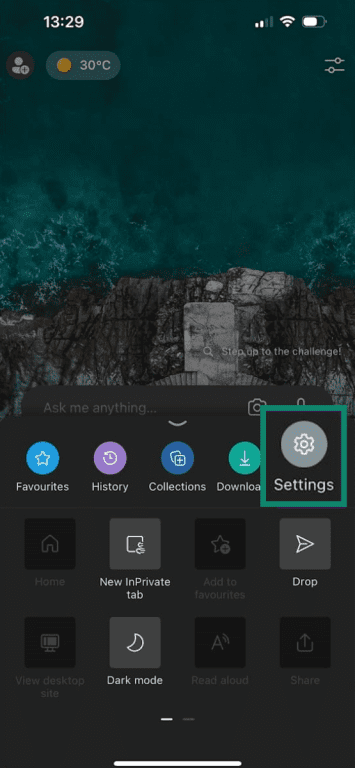
- In the pop-up menu, tap Settings.
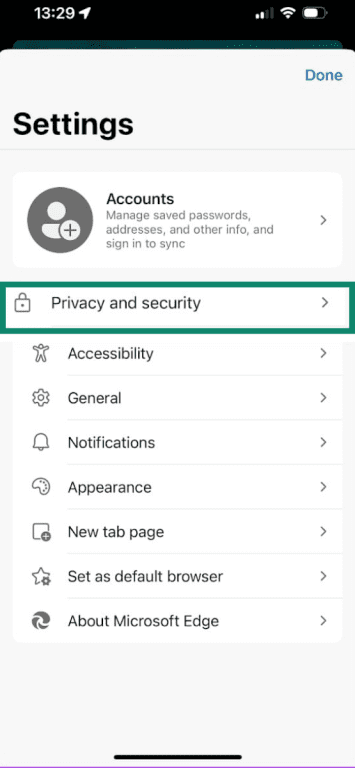
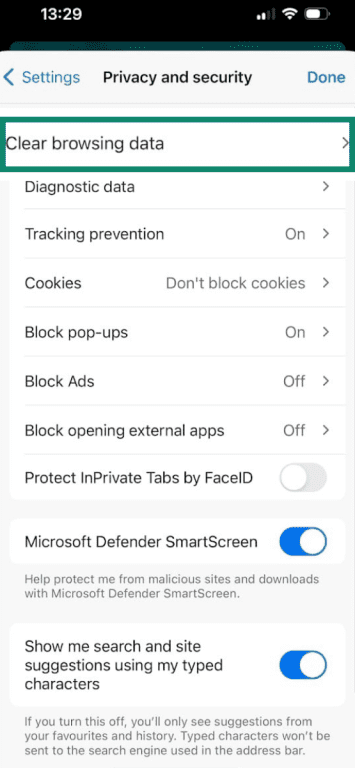
- Select Privacy and security.
- Next, tap Clear browsing data.
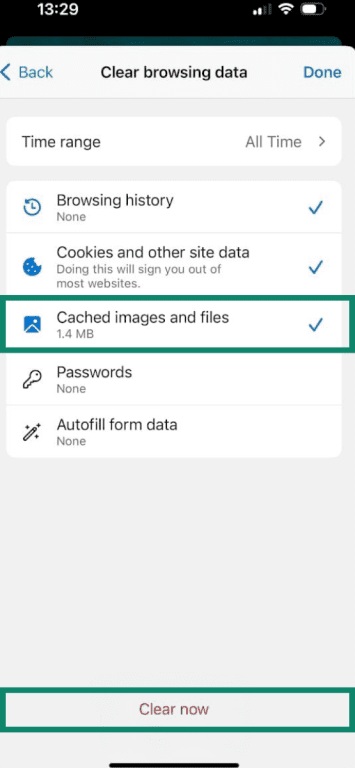
- Make sure Cached images and files is checked and tap Clear now.
iPhone and iPad
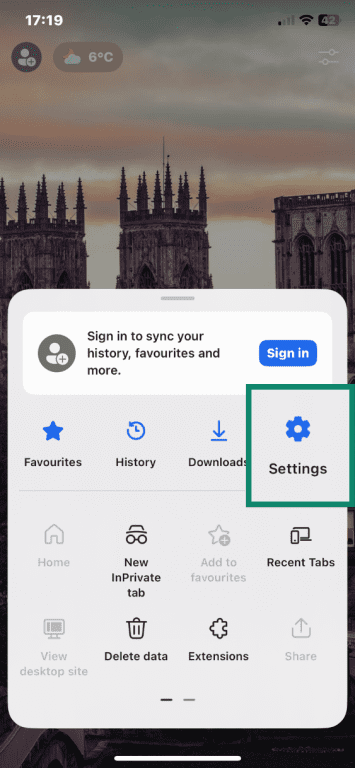
- Open Edge and tap the three-line menu icon at the bottom of the screen.

- On the pop-up menu, tap Settings.
- Next, select Privacy and Security.
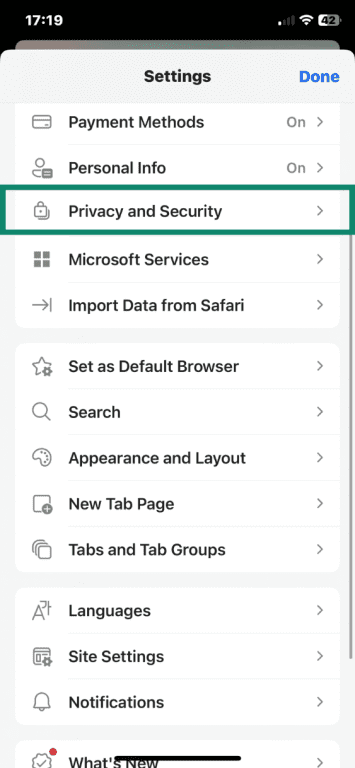
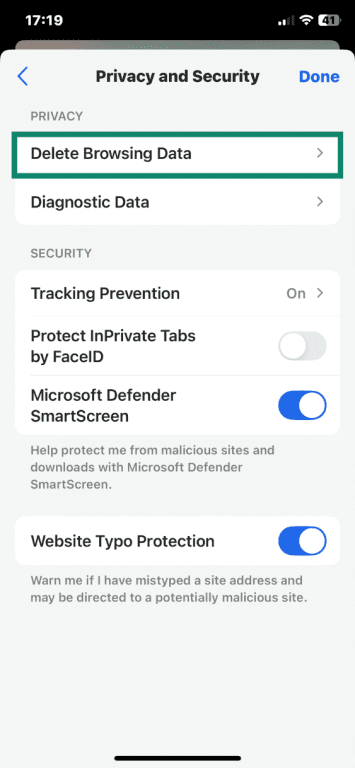
- Under the Privacy heading, tap Delete Browsing Data.
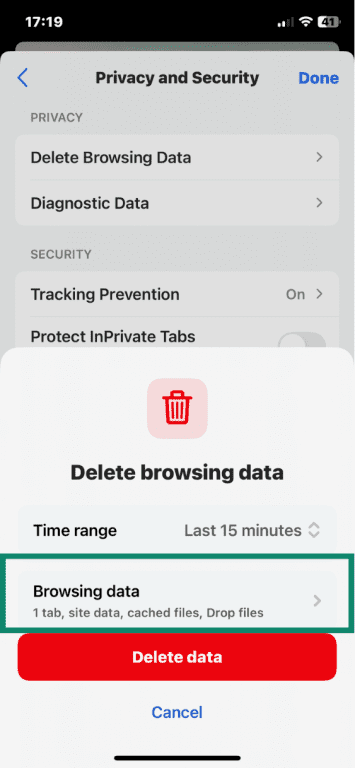
- On the pop-up menu, you can specify data deletion by tapping Browsing Data.
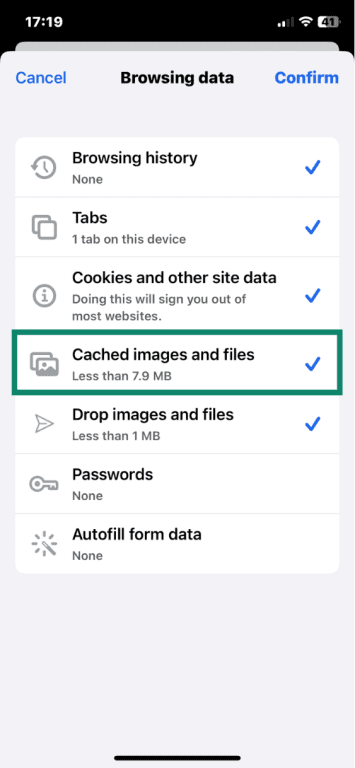
- Make sure Cached images and files is selected and tap Confirm.
Clear cache in Opera
Opera’s cache settings are similar to Chrome and Edge, since it’s built on the same Chromium engine. Here’s how to find and clear it.
Desktop
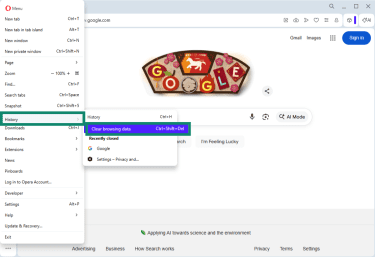
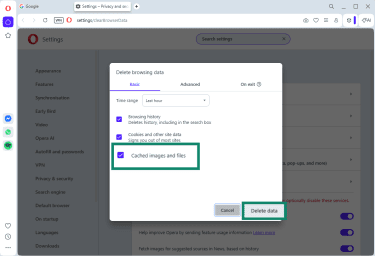
- Open Opera and click the O icon in the top-left corner of the page.

- In the menu that opens, hover over History and click Clear browsing data.
- In the new tab, check the box next to Cached images and files and click Delete data.
Android
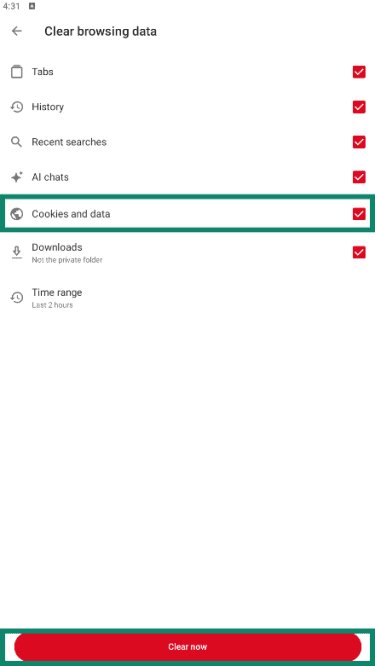
On Android, some versions of Opera bundle cookies, cache, and other web data together, so you’ll have to remove all of it if you want to clear cache data.
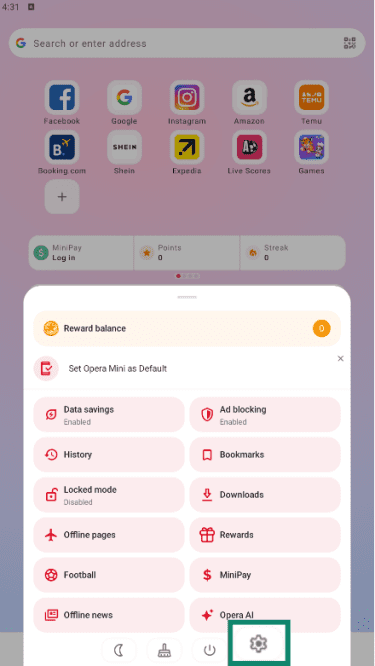
- Open the Opera app and tap the O icon in the bottom-right corner.

- In the menu that pops up, tap the cog icon to open Settings.
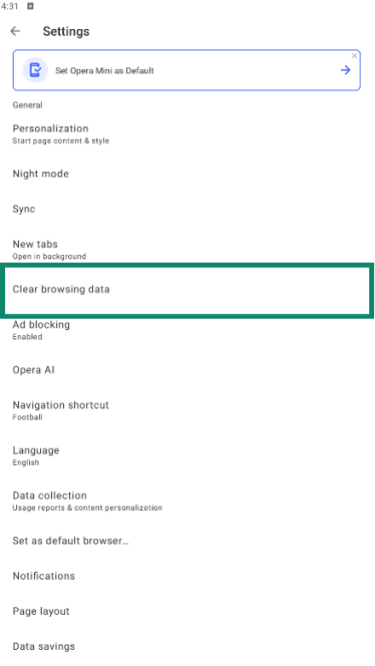
- Select Clear browsing data.
- Select Cookies and data to remove cache, cookies, and other web data.
iPhone/iPad (Opera app)
- Open the Opera app and tap the three-dot menu icon in the bottom-right.

- In the pop-up menu, tap Settings.
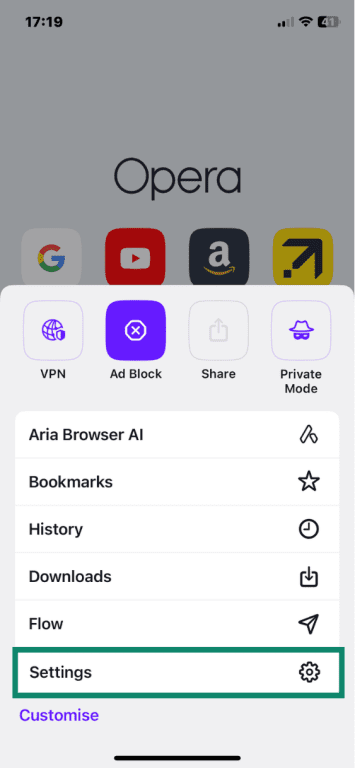
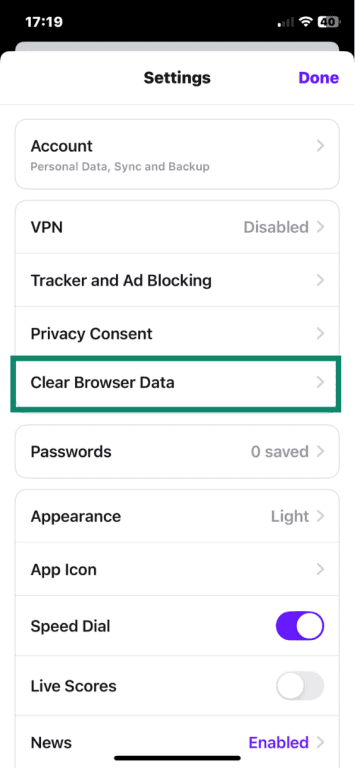
- In the Settings menu, tap Clear Browser Data.
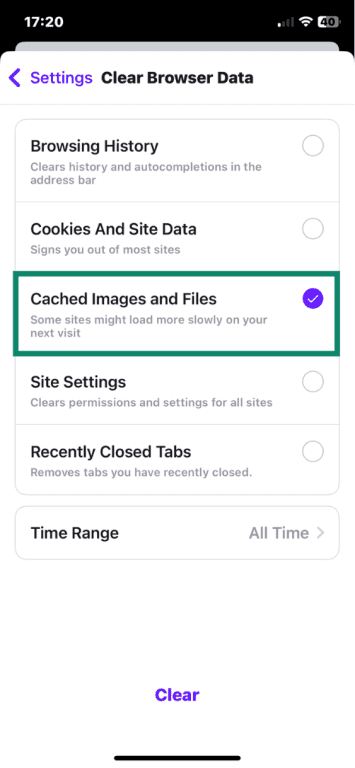
- Make sure Cached Images and Files is selected, and tap Clear.
FAQ: Common questions about clearing your browser cache
How do I clear my cache in the browser?
How to clear browser cache on iPhone?
How do I clear my browser cache on Android?
Is it safe to clear my browser cache?
Where is the clear cache button?
How often should I clear my browser cache?
What happens when I clear my cache?
Can clearing my cache save space?
What is the difference between clearing cache and cookies?
Take the first step to protect yourself online. Try ExpressVPN risk-free.
Get ExpressVPN










 Support Center
  FAQ
FAQ  VPN Setup Tutorials