How to fix the “RPC server is unavailable” error on Windows


The “RPC server is unavailable” error appears when Windows can’t communicate with a required service or another system, such as during disk management tasks or when connecting to a domain controller.
Fortunately, you can usually resolve this error by following a few simple troubleshooting steps. In many cases, you’ll be able to fix it yourself without needing professional repair or advanced technical support. In this article, we’ll explain the steps to take and how to reduce the likelihood of this kind of error recurring.
What the “RPC server is unavailable” error means
A Remote Procedure Call (RPC) error occurs when Windows can’t communicate with a required service, either on your computer or over the network. It’s similar to making a phone call to a number that’s been disconnected; because the connection can’t be established, the system can’t complete the request, and the error message appears.
What RPC is and why Windows uses it
RPC is the protocol Windows uses to enable various programs to communicate and coordinate tasks. Windows components don’t operate in isolation. RPC allows one component to request services from another.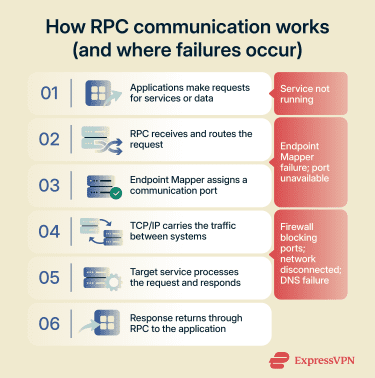
Windows depends on RPC for many core functions, including managing disks, connecting to printers, logging into domain accounts, and running system services. You don’t notice it when everything’s running smoothly, but if the communication pathway is interrupted or blocked, you’ll see the “RPC server is unavailable” error.
Common reasons this error appears
The RPC error appears when Windows can’t establish or maintain a stable connection with a required service. This happens when there's something in between that interrupts the connection pathway. Some common causes include:
- Required Windows services aren’t running: To work correctly, RPC needs three background services to be running. These are:
-
- Distributed Component Object Model (DCOM) server process launcher: Starts and manages system services and COM components that RPC relies on.
- Remote procedure call: Handles communication between Windows processes and services.
- RPC Endpoint Mapper: Directs requests to the correct service and assigns the communication port.
If any of these stop running, the communication breaks down.
- Firewall or antivirus is blocking RPC: RPC uses Transmission Control Protocol (TCP) port 135 as its initial contact point. This allows the RPC Endpoint Mapper to identify the correct service and assign a communication port. Firewalls and antivirus software may block port 135 on unsecured networks or in enterprise environments with strict security policies to prevent unauthorized remote access.
- Network connectivity issues: If your computer loses network access, there’s an invalid IP configuration, or network discovery and related sharing features are disabled in scenarios that rely on them, Windows can’t communicate with the requested service.
- Domain Name System (DNS) or name resolution failures: When a DNS server doesn’t respond, Windows can’t translate a system name into an IP address, so the RPC request won’t reach the correct destination.
- Disabled network features or sharing settings: Turning off certain components, such as file or printer sharing, can prevent RPC-dependent services from functioning correctly.
Quick checks to try first
On personal or small-office systems, an RPC error generally isn’t a major issue. Before you adjust settings or disable your firewall or antivirus, do these quick checks. There are a few simple solutions that typically resolve the issue and allow communication to resume.
Restart your PC and network connection
Rebooting your computer and the network is the first step in fixing problems like the RPC error. The background services, network connections, and ports that RPC relies on to work can temporarily fail after:
- System updates
- Sleep mode
- Network changes
When you restart your PC, this resets system services and restores regular communication between the various components, which often fixes the problem.
Make sure you’re connected to the internet or a local network
If rebooting your computer didn’t resolve the issue, check to make sure your internet is connected. RPC requires local system services to communicate properly, and it also needs a working network connection when accessing remote systems.
If you’re connected to Wi-Fi, confirm that you’re still connected to the correct network and that internet access is available. Connections can drop when switching networks, waking from sleep mode, or due to network misconfiguration issues. You can try:
- Restarting your router and modem.
- Reconnecting to your Wi-Fi network.
- Testing access to another website or network device.
If you’re on a local network (like in an office), make sure you can reach other systems on the network. Firewall settings or incorrect network configuration can also prevent RPC communication.
Check date, time, and basic system services
It might seem like having the wrong date or time on your computer is insignificant, but it can represent a slightly larger problem: a break in the secure communication between Windows components.
Windows uses time-based security mechanisms such as Kerberos authentication, which requires the system clock to be accurate. If your clock is off by more than a few minutes, authentication fails, and RPC communication is rejected, even though the service itself is running.
It’s similar to showing up at a secure building with an ID card that expired yesterday. The building is open, the receptionist is there, but your credentials are considered invalid because the timestamp doesn’t match.
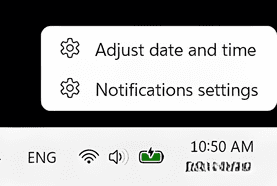
Make sure your system date, time, and time zone are correct. In Windows settings, you can enable automatic time sync to keep your clock aligned with a trusted time server and avoid authentication issues. Here’s how:
- Hover your mouse over the clock and right-click to open the menu. Select Adjust date and time.
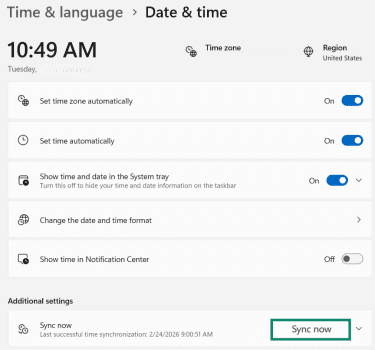
- The time setting window will open. Check that the options for Set time zone automatically and Set time automatically are enabled. If not, enable them, and click the Sync now button.
Temporary service or network glitches explained
Windows has multiple background services and communication channels continuously running to ensure the computer is operating at peak performance. However, all it takes is for one of them to disconnect or stop responding to create a domino effect that stops programs from communicating.
For example, a required service may still be installed but temporarily unavailable, a network session may fail to establish properly, or the system may fail to bind to a required communication port. If your RPC error is caused by one of these temporary glitches, the issue isn’t a system or configuration error, and a computer restart will often fix the problem.
Basic fixes that often resolve RPC errors
If the checks above didn’t fix your issues, follow the troubleshooting steps below to ensure that your settings and services are configured and running properly.
Check that the required Windows services are running
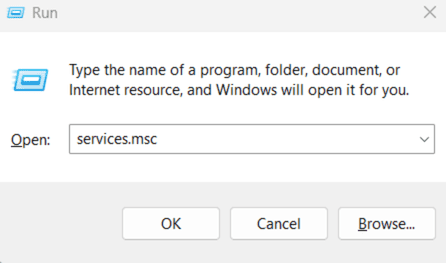
- Press the Windows key + R and type services.msc in the space provided. Then, click OK.
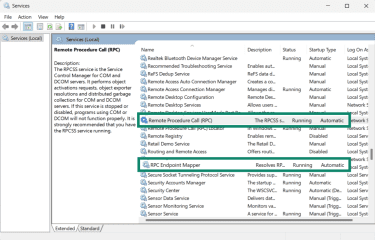
- Check that the three RPC services (DCOM Server Process Launcher (not pictured below), Remote Procedure Call (RPC), and RPC Endpoint Mapper) are all set to Running and Automatic.
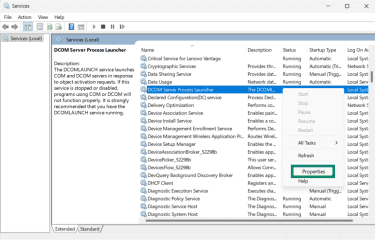
- If they’re not set to Running and Automatic, right-click the service to open the menu, and click Properties.
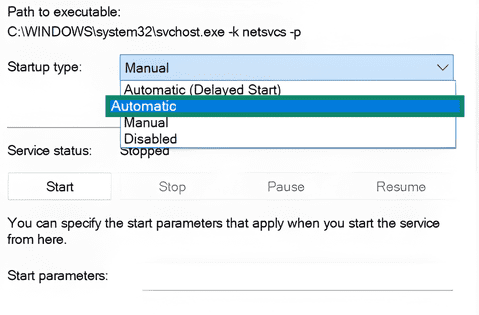
- Open the menu options next to Startup type, and select Automatic.
How to check your firewall settings
If the three services are running properly, the issue might be that your firewall is blocking port 135 rather than allowing the connections to pass. The steps below are for Windows 11 Microsoft Defender Firewall, but the process will be similar for any firewall.
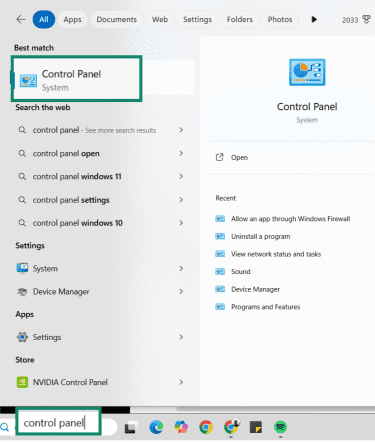
- Type Control panel in the Windows search bar, and open the program.
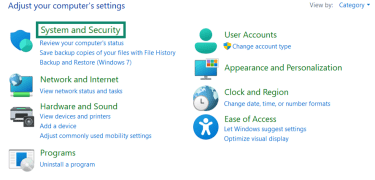
- Click on System and Security.
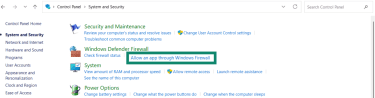
- Under Windows Defender Firewall, click Allow an app through Windows Firewall.
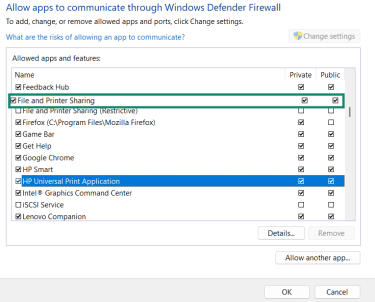
- Locate File and Printer Sharing and Remote Assistance (not pictured below), and ensure they’re enabled to allow connection for public and private if you’re accessing remote services such as shared printers or Remote Assistance. Click the checkboxes, then the OK button.
- Next, check that the required ports are open. Go back to the Windows search bar, type wf.msc, and open the program. If port 135 is blocked by a custom firewall rule, you may need to create an inbound rule allowing TCP port 135 on trusted networks.
Note: This rule usually needs to be configured on the device receiving the RPC connection (the RPC server). If you’re connecting to another computer or service and seeing the “RPC server unavailable” error, the firewall rule may need to be changed on that remote system rather than on the device making the request.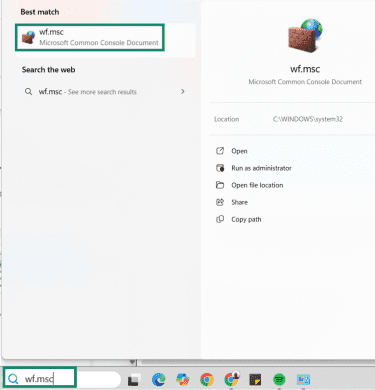
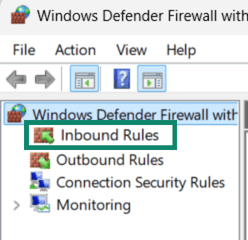
- To create an inbound rule, click Inbound Rules on the sidebar menu.
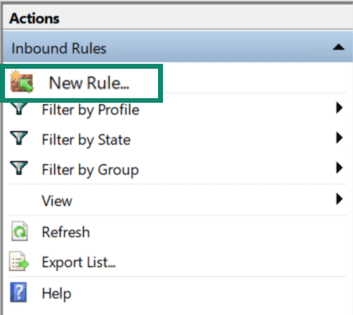
- Press New Rule… on the menu on the right sidebar.
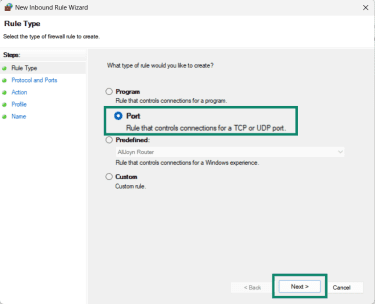
- Select Port, and then click Next.
- Enter 135 in the blank field next to the Ports, and click Next.
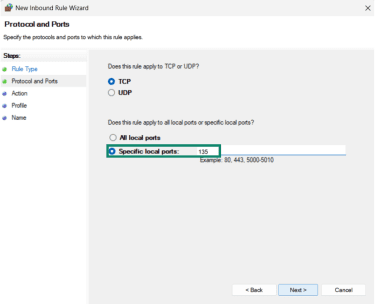
- Click Allow the connection, and press Next.
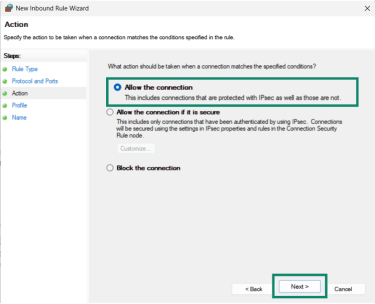
- Click Finish.
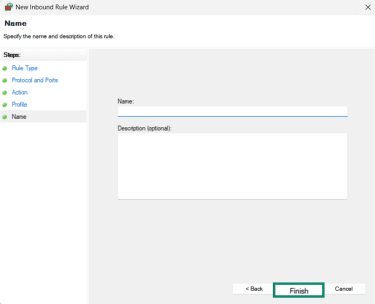
Don’t open port 135 on public networks unless necessary, as it can expose system services to external traffic.
Reconnect to the network and try again
A weak network connection is another common cause of the "RPC is unavailable" error. Sometimes, even when the network reconnects, RPC-dependent services may fail to re-establish communication properly.
To reconnect and reset your network, follow these steps:
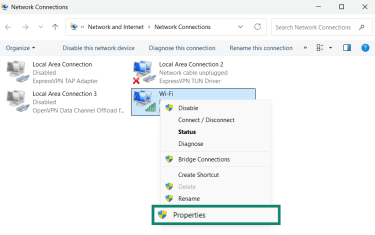
- Type View network connections in the Windows search bar, and open the program.
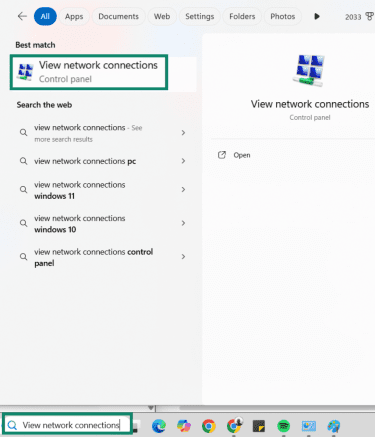
- Put your mouse over your network and right-click. Click on the Properties option on the menu.
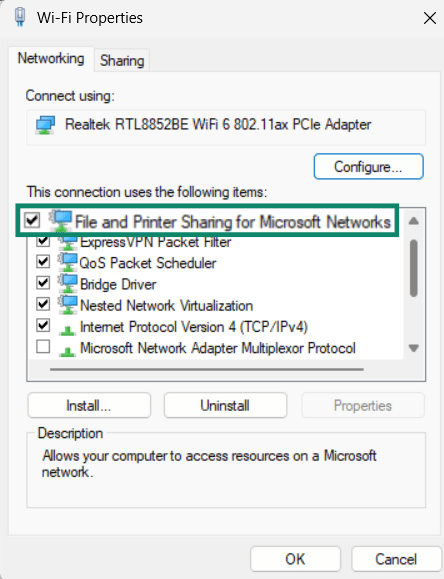
- Check that File and Printer Sharing for Microsoft Networks is enabled if you’re accessing shared folders, printers, or other devices on your network. Also, ensure that Internet Protocol Version 6 (TCP/IPv6) has a check next to it; Windows uses IPv6 internally for certain services and features, so if IPv6 is disabled, some RPC-dependent services may fail to communicate properly. If it’s unchecked, click the box to enable it, then press OK.
- Restart your computer.
Clear your DNS cache
Issues with your DNS configuration can also cause an RPC unavailable error. Follow these steps to clear the DNS cache.
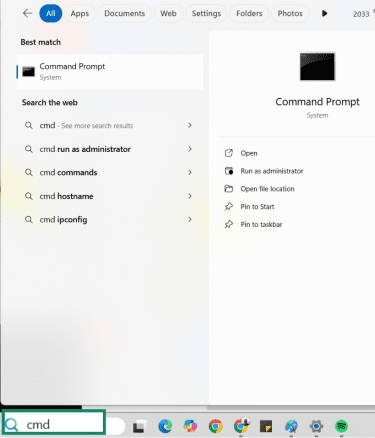
- Type CMD in the Windows Start menu, then press Enter.
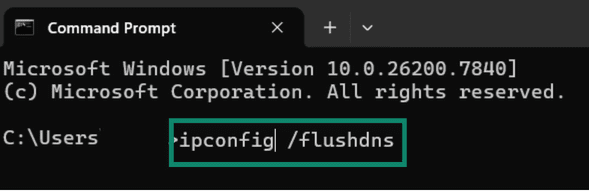
- Type ipconfig /flushdns, and press Enter. This will clear the DNS resolver cache, removing outdated or corrupted address records.
Run built-in Windows network troubleshooting tools
Windows comes with a network troubleshooter that can identify and fix common issues that may be blocking RPC communication.
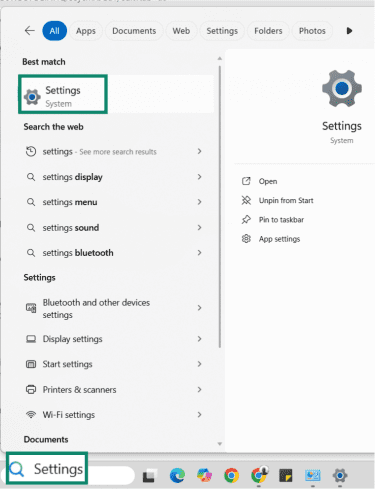
- Type Settings in the Windows Start menu, and click on Settings.
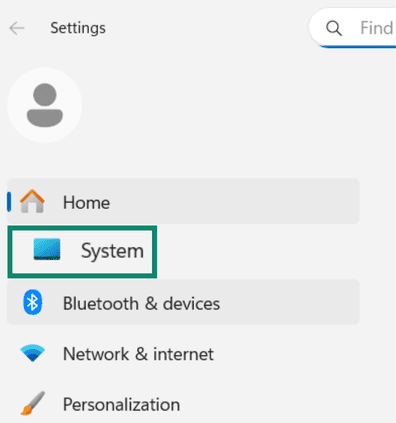
- Click System in the menu bar if it isn’t already selected.
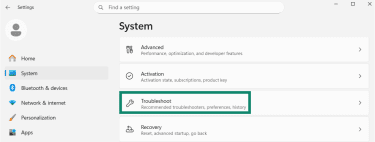
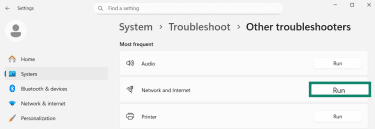
- Scroll down until you find Troubleshoot, and click it.
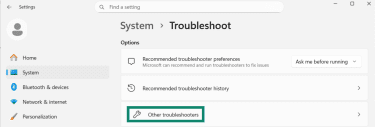
- Select Other troubleshooters.
- Click the Run button next to Network and Internet.
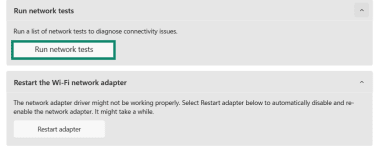
- Press the Run network tests button, and the troubleshooter will scan your system, then diagnose and fix common connectivity issues. This may resolve connectivity problems that interfere with RPC communication.
Adjust registry settings (advanced users only)
In rare cases, the “RPC server is unavailable” error may be caused by incorrect registry configuration related to essential Windows services. This step performs the same check as the Services Manager method above but directly verifies the registry values controlling how these services start. This can be useful if the Services Manager interface isn’t accessible or the settings don’t appear to apply correctly.
Note that this step is recommended for advanced users only; if you’re not comfortable working with system settings, consider seeking technical assistance.
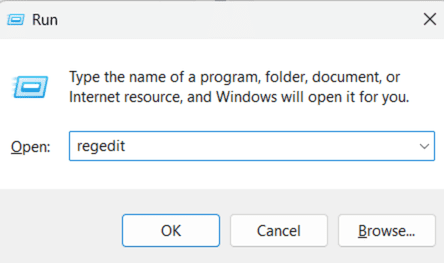
- Press the Windows key + R, type regedit, and hit Enter.
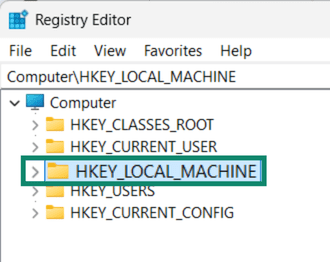
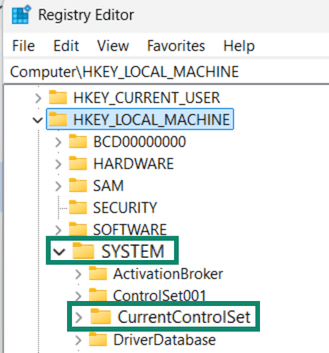
- Locate HKEY_LOCAL_MACHINE, and click the arrow next to it to open the folders.
- Open the SYSTEM folder, and then open the CurrentControlSet folder.
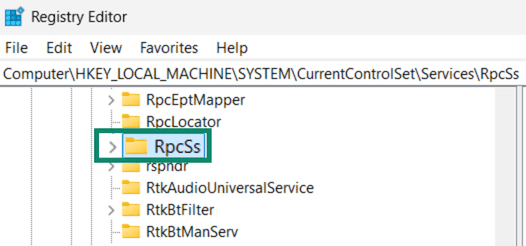
- Open the Services folder, and scroll down until you find RpcSs.
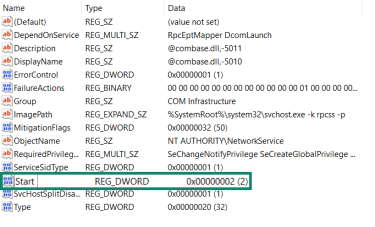
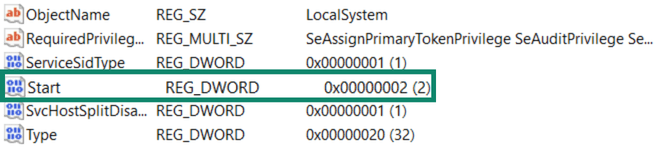
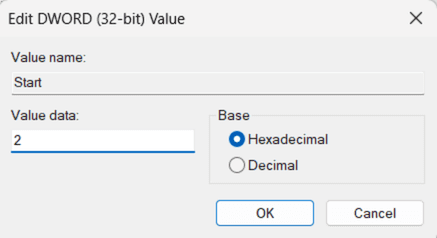
- Find Start, and check if the data is set to 0x00000002 (2).
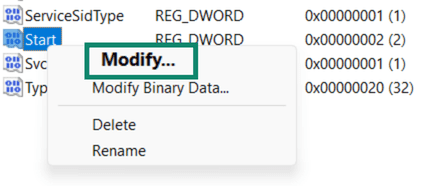
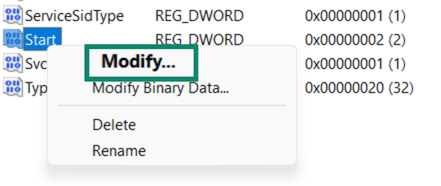
- If not, right-click on Start and select Modify.
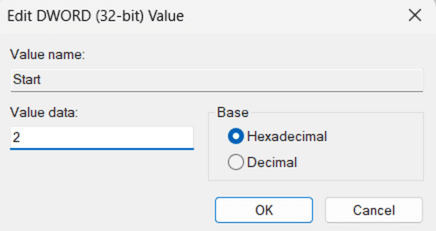
- Set the Value data to 2, and press OK.
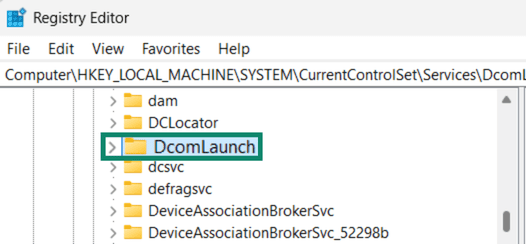
- Go back to the list of folders and locate DcomLaunch.
- Find Start, and check if the data is set to 0x00000002 (2).
- If not, right-click on Start and select Modify.
- Set the Value data to 2, and press OK.
- Restart your computer.
Setting the value to 2 configures the service to start automatically when Windows boots, which is the same as selecting “Automatic” in the Services Manager. If the value is set to Disabled (4) or Manual (3), RPC-related processes may not run correctly.
Preventing common RPC errors
The good news is that, on most personal systems, the “RPC server is unavailable” error is really more of an inconvenience than a major problem with your Windows PC. However, it can still interrupt important tasks, especially if it happens repeatedly. For example, you may see the error when trying to print a document, access system tools, or connect to another computer or network resource.
You may not be able to eliminate the error completely, since something as simple as a dropped connection after your computer wakes from sleep can trigger it. However, following these tips can reduce the frequency with which the error appears and help keep your system running smoothly.
Keep Windows and drivers up to date
Windows updates include fixes for system services, network components, and communication protocols that RPC depends on. Outdated network drivers or system files can cause compatibility issues or prevent services from functioning properly. Install updates regularly to help ensure that RPC and its supporting components remain stable and compatible with your system.
Avoid aggressive firewall or security app misconfigurations
Firewalls and security software protect your system, but overly restrictive settings can block legitimate RPC communication. This is especially important for environments that rely on remote services, printers, or domain authentication.
Don’t disable essential Windows services or block system communication ports unless you understand the impact. Keeping default or recommended security settings helps ensure RPC can function normally while your system remains protected.
Maintain a stable network connection
RPC depends on consistent system and network communication between services, whether on your local computer or across a network. Frequent network interruptions, switching between networks, or unstable connections can prevent Windows from reaching required services.
To reduce the risk of errors:
- Use a reliable wired connection when possible, and ensure your network is configured correctly.
- Verify your system has a valid IP address.
- Ensure your network adapter is enabled.
- Confirm you can reach other devices or services on the network.
You can test this with tools like ping or traceroute, or by accessing shared folders, printers, or other network resources. These checks help ensure RPC can contact the Endpoint Mapper, receive an assigned port, and establish a communication channel.
FAQ: Common questions about the “RPC server is unavailable” error
What does “RPC server is unavailable” mean?
Can this error be caused by my internet connection?
Is this a Windows bug or a network problem?
When should I seek professional IT help?
Take the first step to protect yourself online. Try ExpressVPN risk-free.
Get ExpressVPN
















 Support Center
  FAQ
FAQ  VPN Setup Tutorials