What is FileRepMalware, and should you remove it?


FileRepMalware is a detection label used by some cybersecurity tools when they encounter a file with little or no established reputation. It means the software doesn’t have enough historical data to confidently label the file as safe. The term "FileRepMalware" is a combination of "file reputation" and "malware."
This type of alert is most often based on trust data and behavioral signals. Files that are new, uncommon, or distributed outside well-known channels are more likely to be flagged, even if they aren’t harmful.
In this guide, we explore why security software applies this label, when removal makes sense, when it doesn’t, and what steps can reduce similar alerts in the future.
How files get flagged as FileRepMalware
Files receive the FileRepMalware label through your antivirus software's reputation analysis system. When you download or access a file, your security program evaluates it to determine if it poses a risk.
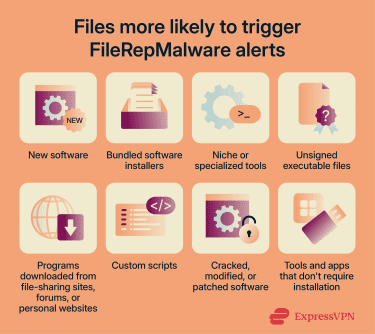
Certain types of downloads are more likely to face higher scrutiny from reputation-based detection systems and are more likely to trigger FileRepMalware alerts. Here are some common examples:
- New software installers that haven’t been widely distributed yet.
- Bundled software installers, which might contain malware and potentially unwanted apps (PUAs).
- Niche or specialized tools used by a small number of people.
- Executable files without digital signatures.
- Software from independent developers or small companies that haven't built the same trust levels as major software vendors.
- Beta versions, nightly builds, or pre-release software.
- Programs downloaded from file-sharing sites, forums, or personal websites.
- Custom scripts written in languages like Java, Python, or PowerShell.
- Cracked, modified, or patched software versions obtained from unofficial sources.
- Development tools, system utilities, and portable applications that don't require installation.
How to handle FileRepMalware files
FileRepMalware alerts are often false positives, so removal isn’t always necessary. However, before deciding what to do with the flagged files, it’s important to first verify whether they're actually malicious. Here’s how to do that.
Research the file
Start by researching the flagged file before taking any action to remove it.
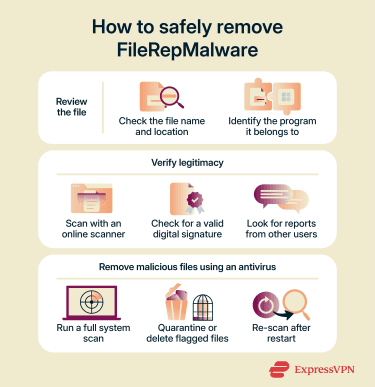
Check the file name and location your antivirus reported
Note the complete file path and any associated program names. Files located in temporary folders (such as AppDataLocalTemp), hidden system directories, or random-looking subfolders with unusual names may warrant closer scrutiny.
You should also be cautious if the file claims to be part of a well-known program but appears outside its normal installation directory, or if the associated program name looks misspelled or unfamiliar.
Scan the file with multiple antivirus programs
Don’t rely only on the security program that originally flagged the file. Instead, upload the file to a multi-engine scanning service like VirusTotal.com, which checks it against over 70 different security engines simultaneously.
If the same file is flagged consistently across independent vendors, that’s a stronger indication it may be malicious. But even if just a single antivirus engine flags a piece of software as malicious, the positive result should still be taken seriously.
Search online for information about the specific file name
Other users may have reported similar experiences with the same file. Look for reports from trusted, high-profile sources such as established security forums, reputable cybersecurity blogs, vendor knowledge bases, or well-moderated communities.
Avoid relying on the same website or source from which you downloaded the file, as malicious sites will claim their files are safe. If multiple independent and reputable sources associate the file with suspicious behavior or malware, treat it as high risk.
Verify the file's digital signature
Right-click the file in Windows, select Properties, and check the “Digital Signatures” tab. A valid signature from a recognized publisher suggests the file is legitimate.
Remove a malicious file
If you determine a file is actually malicious, follow these removal steps:
- Run a full system scan: Update your antivirus and run a full system scan in Windows’ normal operating mode.
- If the scan is blocked, use Safe Mode or an offline scan: Modern antivirus programs are designed to detect and remove most threats while the system is fully running. In the majority of cases, this is sufficient. However, if malware prevents your antivirus from running properly, causes crashes, or keeps reappearing after removal, restart the computer in Safe Mode and run another full scan. Safe Mode limits startup processes, which may prevent malicious programs from interfering. For persistent or advanced infections, use an offline scanning tool, which is often more effective than Safe Mode.
- Quarantine or delete detected files: Allow your antivirus to isolate or remove any flagged items, in addition to the item causing the FileRepMalware alert. Review the results carefully and confirm removal only for files you’ve verified as malicious.
- Clear temporary files: Open Disk Cleanup, select your system drive, check Temporary files, and click OK to remove leftover data after the scan.
- Restart and rescan to confirm: Boot back into Windows and run another antivirus scan to confirm the threat has been fully removed.
What to do if the alert is a false positive
False positives are common with FileRepMalware detections. If you’ve confirmed that a file is legitimate, you can:
- Submit the file to your antivirus vendor for analysis: Most security companies provide submission forms where you can report false detections. Include details about the file, its source, and why you believe it's genuine.
- Contact the software developer: If the file comes from a lesser-known developer, let them know their software is being flagged. They may be able to digitally sign the file, adjust how it’s packaged, or submit it to security vendors to improve its reputation.
- Check for software updates from the original developer: Sometimes false positives occur with older versions of programs. Updated versions may include changes that improve reputation scores or digital signatures.
- Download the software again from the official source: Files from unofficial sources might be modified versions that can trigger security warnings. If you're unsure about your current copy, redownload it from the developer’s official website.
- Add an exclusion only if the file is verified safe: Configure your antivirus to exclude the file from future scans only after you’ve thoroughly confirmed it’s legitimate.
When professional help may be required
In some situations, it’s better to seek expert assistance rather than trying to resolve the issue on your own. Professional help may be appropriate if:
- The file reappears after removal: If a FileRepMalware-flagged file keeps coming back even after quarantine or deletion, a hidden process, scheduled task, or startup entry might be recreating it. A professional might be able to trace what is regenerating the file and remove the underlying cause.
- Multiple system components are affected: If you notice unusual behavior across several areas of your system, such as browser settings changing, unknown startup items, disabled security features, or frequent crashes, it may indicate a broader infection. An expert can perform deeper diagnostics to identify whether multiple components are compromised.
- You’re unsure whether the file is tied to essential software: Some genuine programs (especially custom-built tools or new installers) can trigger FileRepMalware alerts. A professional can look into the file’s origin, digital signature, and behavior to determine whether it’s a false positive or a real threat, helping you avoid deleting something critical.
- Security tools are blocked: If your antivirus software won’t run or keeps getting disabled, this suggests the malware may be actively blocking security software. This level of persistence can indicate a more sophisticated threat that benefits from expert analysis and removal.
- System performance issues persist after removal: If your PC continues to show signs of a virus infection, such as slow responses and frequent crashes, even after cleanup, remnants of the threat may still be present. A professional can perform deeper system checks to locate and remove leftover components.
How to prevent FileRepMalware alerts
While you can't eliminate all false positives, you can significantly reduce the frequency of FileRepMalware warnings through proactive security measures. Some practical steps you can take include:
Avoiding untrusted downloads and installers
Files obtained outside well-known distribution channels are more likely to lack reputation data, increasing the likelihood of FileRepMalware alerts. To reduce that risk, consider adopting some internet security best practices, such as:
- Download only from official sources: Get software directly from developer websites or verified app stores, since these sources provide files with proper digital signatures and established reputations with security tools.
- Verify website URLs carefully: Double-check that the web address matches the official domain exactly, as malicious sites often use slight variations to distribute modified or infected files.
- Check reviews and download counts: Look for high download numbers and positive feedback from verified users, which usually indicate a trustworthy, reputable program.
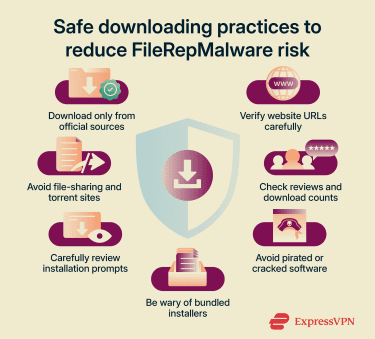
- Avoid pirated or cracked software: These files often bypass security protections and lack verified digital signatures, which is why they’re frequently flagged as potential threats. When possible, view the file’s properties and confirm it’s digitally signed by a verified publisher, which helps confirm the file hasn’t been tampered with.
- Be cautious with pop-up installers and download managers: These tools often bundle extra programs or wrappers around the real installer, increasing the risk of unwanted or suspicious files being introduced.
- Review installation prompts closely: Read each installation step, especially after downloading free software, and deselect optional or bundled software to reduce the chance of triggering FileRepMalware alerts.
- Stay away from file-sharing and torrent sites: Files from these platforms come from unverified uploaders and can lack the trust indicators that security software relies on.
Keeping software and operating systems updated
Regular updates often include renewed digital certificates and current file signatures, reducing the likelihood of reputation-based warnings.
Here are some actions to keep your software and operating systems up-to-date:
- Enable automatic updates for your operating system: Windows Update, macOS Software Update, and similar services install security patches that address vulnerabilities.
- Configure your applications to update automatically when possible: Software developers regularly release updates with renewed digital signatures and improved security features. When automatic updates aren’t available, check for and install updates regularly.
- Update your antivirus software and its definition databases regularly: Security programs continually improve their reputation systems and reduce false-positive rates with each update. Updating current definitions can help distinguish genuine software from actual threats.
- Remove end-of-life software from your system: Programs that no longer receive developer support cannot update their security certificates. Security software increasingly flags unsupported applications over time.
- Keep firmware up to date on routers and network devices: Up-to-date firmware equipment provides better security during file downloads and helps verify legitimate sources.
Optimizing your security tools
Keeping your security software properly configured and up to date can help you interpret and respond to FileRepMalware alerts more effectively.
- Adjust detection sensitivity settings: Most antivirus programs offer adjustable detection levels. Setting sensitivity too high increases false positives, while setting it too low reduces protection. Standard or recommended settings typically provide the best balance.
- Enable real-time protection features in your security software: Real-time scanning evaluates files as you download them, providing immediate feedback about reputation status before you execute programs.
- Supplement antivirus protection with additional security layers: Use tools such as firewalls to monitor network traffic for suspicious activity and browser security extensions that warn about dangerous websites before downloads begin. These tools work together to prevent exposure to files that would trigger FileRepMalware alerts.
- Review your security software's detection logs periodically: Understanding which file types trigger alerts helps you identify risky download sources and adjust your habits accordingly.
FAQ: Common questions about FileRepMalware
Is FileRepMalware always malicious?
However, some files flagged as FileRepMalware do contain genuine threats. The label serves as a warning to investigate further before deciding whether to keep or remove the file. Always verify flagged files through multiple scanning engines and research before taking action.
What is FileRepPUP and how is it different from FileRepMalware?
What happens if you ignore FileRepMalware warnings?
How can you avoid repeated FileRepMalware alerts?
Is FileRepMalware related to fileless malware?
Take the first step to protect yourself online. Try ExpressVPN risk-free.
Get ExpressVPN







 Support Center
  FAQ
FAQ  VPN Setup Tutorials