What are passkeys? How to use them with ExpressKeys


A passkey lets you sign into an account without a password. Instead of typing anything, you approve the sign-in with biometrics or a PIN, and a private key stored on your device or in your password manager matches a public key linked to the website to prove it's you without revealing reusable information.
ExpressKeys, ExpressVPN's password manager, generates and stores passkeys in the same encrypted vault as your passwords, so you can manage both in one app.
What are passkeys?
Passkeys are sign-in credentials that replace passwords with a pair of cryptographic keys that work together. When you create one, your device or password manager generates a public key that goes to the website and a private key that stays with you. When you sign in, your private key acts as proof of your identity, and the website checks that proof against the public key.
The main difference between passwords and passkeys comes down to what the website keeps. A password is a shared secret: you know it, and the website verifies it when you sign in. If someone steals or guesses your password, they may be able to access your account, especially if you reuse it or if you don't have additional protections like two-factor authentication (2FA) in place.
Passkeys remove that shared secret. The public key can't be used to sign in without the private key, so even if someone steals it from the website, they can't use it to get into your account.
How do passkeys work with ExpressKeys?
ExpressKeys lets you create passkeys on supported websites and apps and stores them in your vault, so they're ready when you sign in. The exact process varies by device; note that the ExpressKeys macOS app currently supports viewing and merging saved passkeys, but not creating or using them to sign in.
Here's how it works on supported platforms:
-
A site offers a passkey log-in
You choose ExpressKeys as the place to create it, and the app generates a new pair of keys for your account on that site. The site saves the public key with your account details so it can recognize your passkey later. -
ExpressKeys saves the private key
It's stored in your vault as a login item, tied to the site's web address. That's how ExpressKeys knows which site to offer it on. -
You approve the sign-in
The next time you sign in, ExpressKeys offers the passkey, and you confirm by unlocking the password manager with biometrics or your vault password. -
The site checks the answer
For each sign-in, the site sends a one-time challenge, a random value ExpressKeys answers with your private key. The site checks the answer against the public key it saved for your account. Because the challenge changes every time, an answer captured once can’t be reused.
Why use passkeys with ExpressKeys?
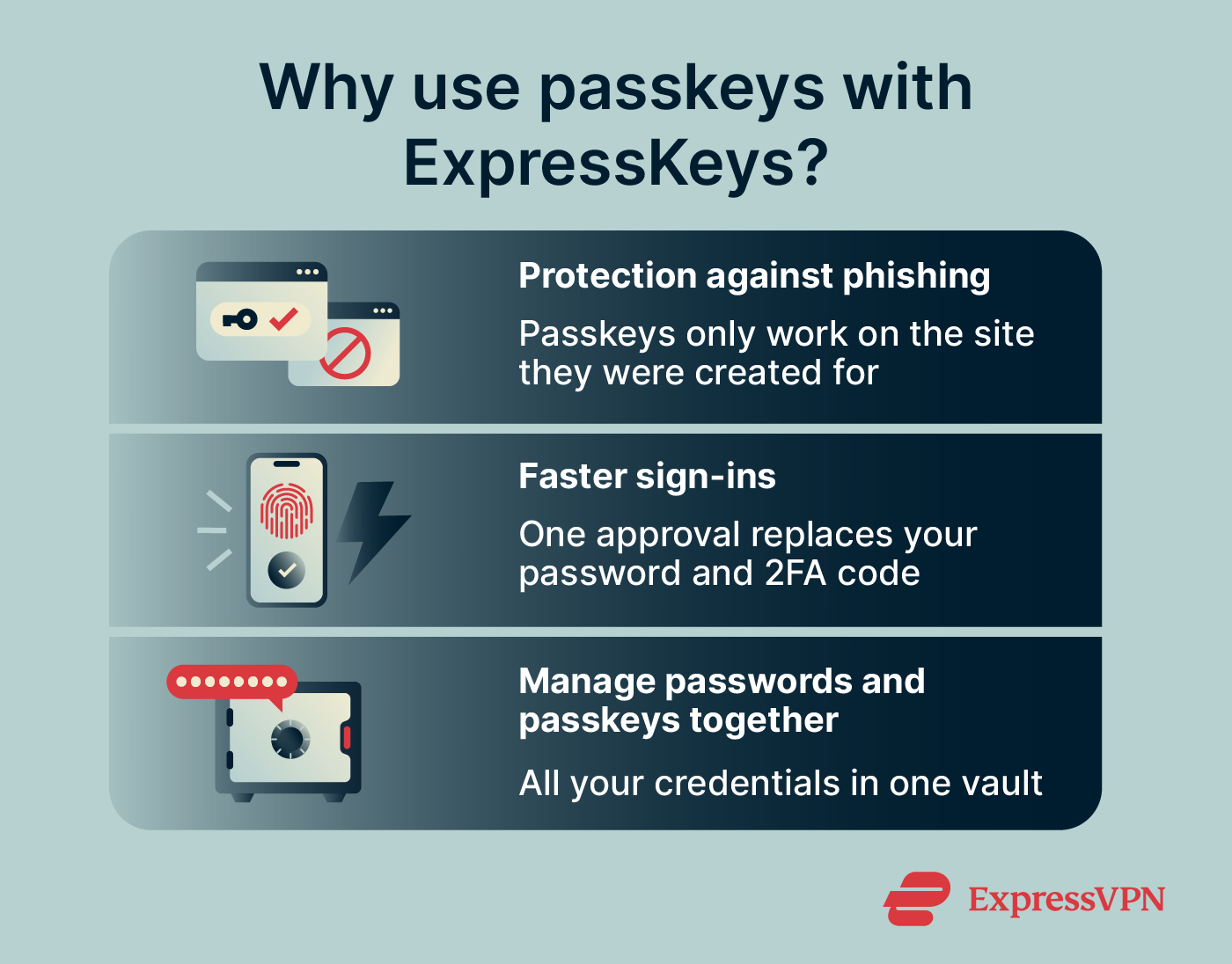
Using passkeys for compatible accounts helps to protect your accounts from phishing and password reuse, and it reduces each sign-in to a single approval.
Protection against phishing
Phishing pages imitate real websites to trick you into handing over your login details. Passkeys help protect you against this by tying authentication to the legitimate website. On a lookalike page, ExpressKeys doesn't offer your passkey at all, because the page's address doesn't match the site the passkey was created for. The private key itself is never shared with the site, so a phishing page can't capture it and reuse it to access your account.
ExpressKeys helps protect your passwords against phishing, too, because it only autofills a saved login when the website's domain matches the one associated with your credentials. However, it can't prevent you from being tricked into entering a password manually.
Faster sign-ins
Many online accounts send a one-time code as a second check after your password. Passkeys can replace both the password and this extra step, letting you sign in by approving a request in ExpressKeys or on your device, without waiting for a code or copying it from a message.
Passkeys also mean one less password to manage. ExpressKeys creates and remembers your passwords, but each one can still need changing after a breach or resetting when you're locked out. Passkeys eliminate the need to change or reset a password, although you may need to replace a passkey if it's lost or compromised.
Combined password and passkey management
Many sites still don't offer passkeys, so you'll probably use passkeys and passwords side by side for a while. When you add a passkey to an account you already have a password for, ExpressKeys offers to merge the two into one login, so the vault keeps a single entry.
A secure replacement for weak passwords
Each passkey is a unique, randomly generated key pair for one account, so it can't be guessed or reused on another account. That addresses two common password risks: weak and reused passwords.
In ExpressVPN's survey of 6,000 football fans in six countries, seven in 10 said they reuse passwords across accounts. Nearly one in four had built a password from football details like a club name or shirt number, providing a useful clue for someone wanting to guess a fan’s credentials.
Where a service supports passkeys, replacing a weak or reused password with one is a good way to strengthen your account security. ExpressKeys can show you where to start: Password Health flags saved passwords that are reused or too weak, so you can focus on those accounts.
How to set up and use passkeys in ExpressKeys
ExpressKeys is included with ExpressVPN's Advanced and Express Pro plans and is also available as a standalone subscription. It has dedicated apps for iOS, Android, and Mac (though the Mac app can’t create or use passkeys), as well as a browser extension for Chrome and Firefox. The Chrome extension also works with Opera, Edge, Vivaldi, and Brave.
For full details on how to set it up, see our guides:
- Set up the ExpressKeys browser extension
- Set up the ExpressKeys Android app
- Set up the ExpressKeys iOS app
Create a passkey in ExpressKeys
You can create a passkey whenever a website offers one, usually when you sign up or in an existing account's security settings. Before creating your first passkey, make sure autofill is turned on for ExpressKeys on your device, since ExpressKeys uses it to save passkeys.
We’re using the iOS app for these instructions. For more device-specific instructions, including on how to merge and delete passkeys, see the full ExpressKeys passkey guide.
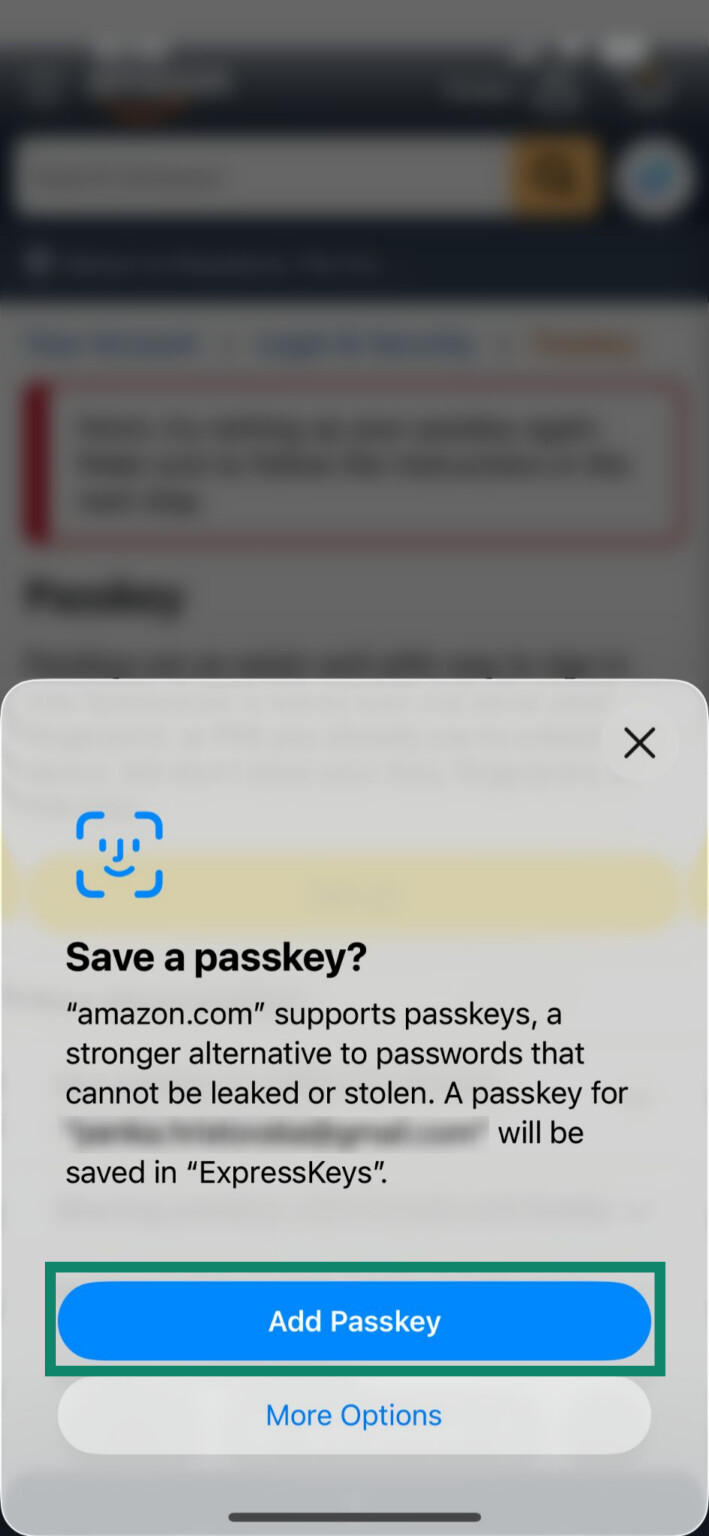
- When your device prompts you to create a passkey, tap Add Passkey in the pop-up that appears.
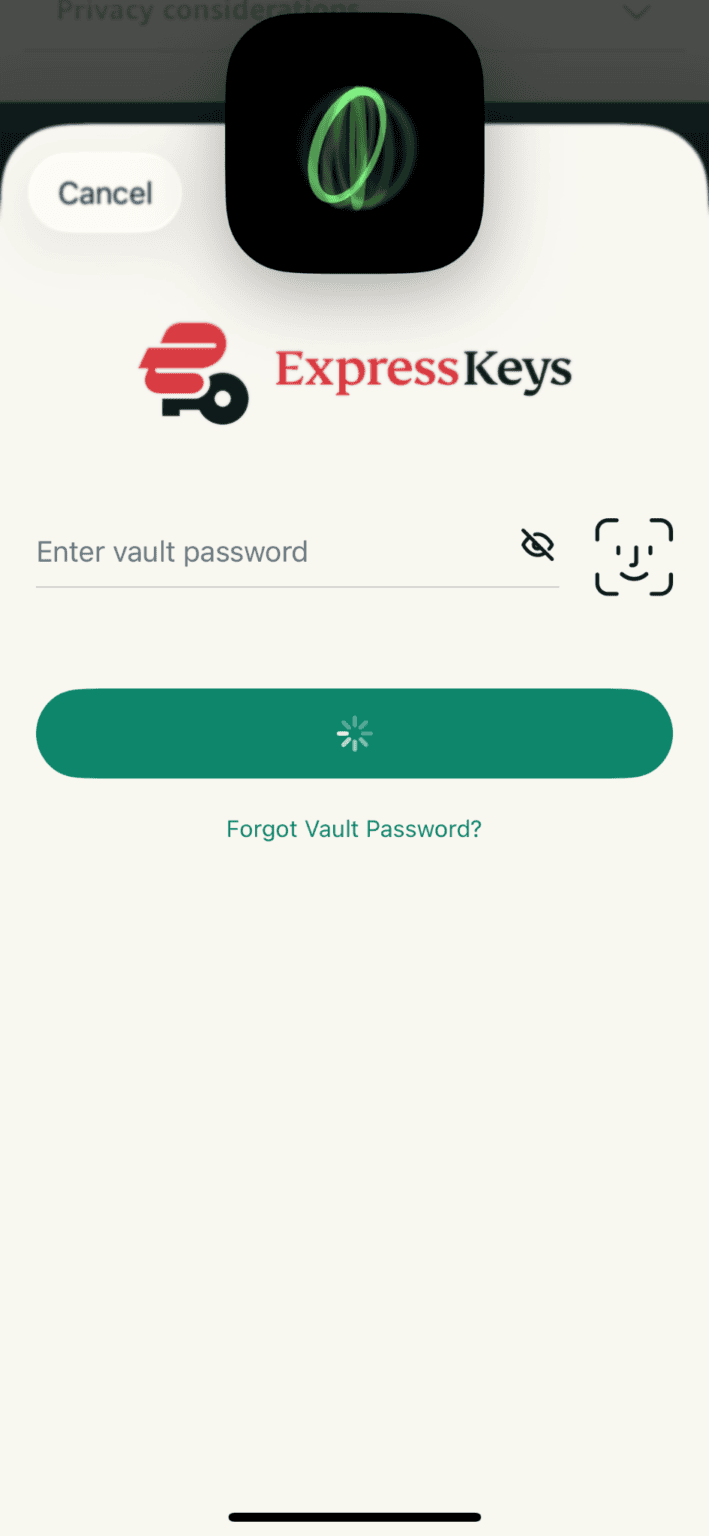
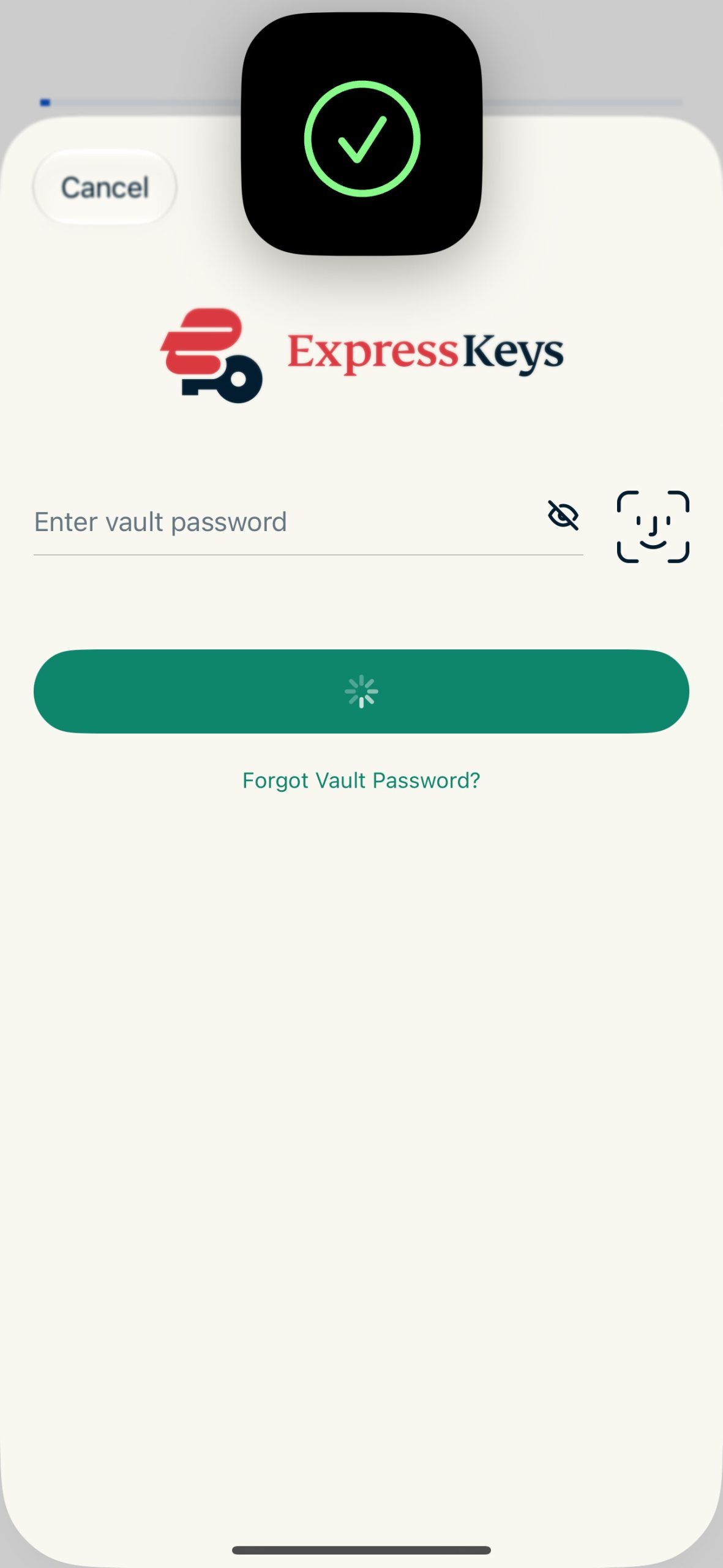
- Unlock ExpressKeys with your vault password or biometrics (face or fingerprint scan). The app will now generate and store your new passkey automatically.
Sign in with a passkey
Once a passkey is saved, ExpressKeys offers it the next time you sign in to that account:
- Go to the sign-in screen of the website or app and tap Use passkey.
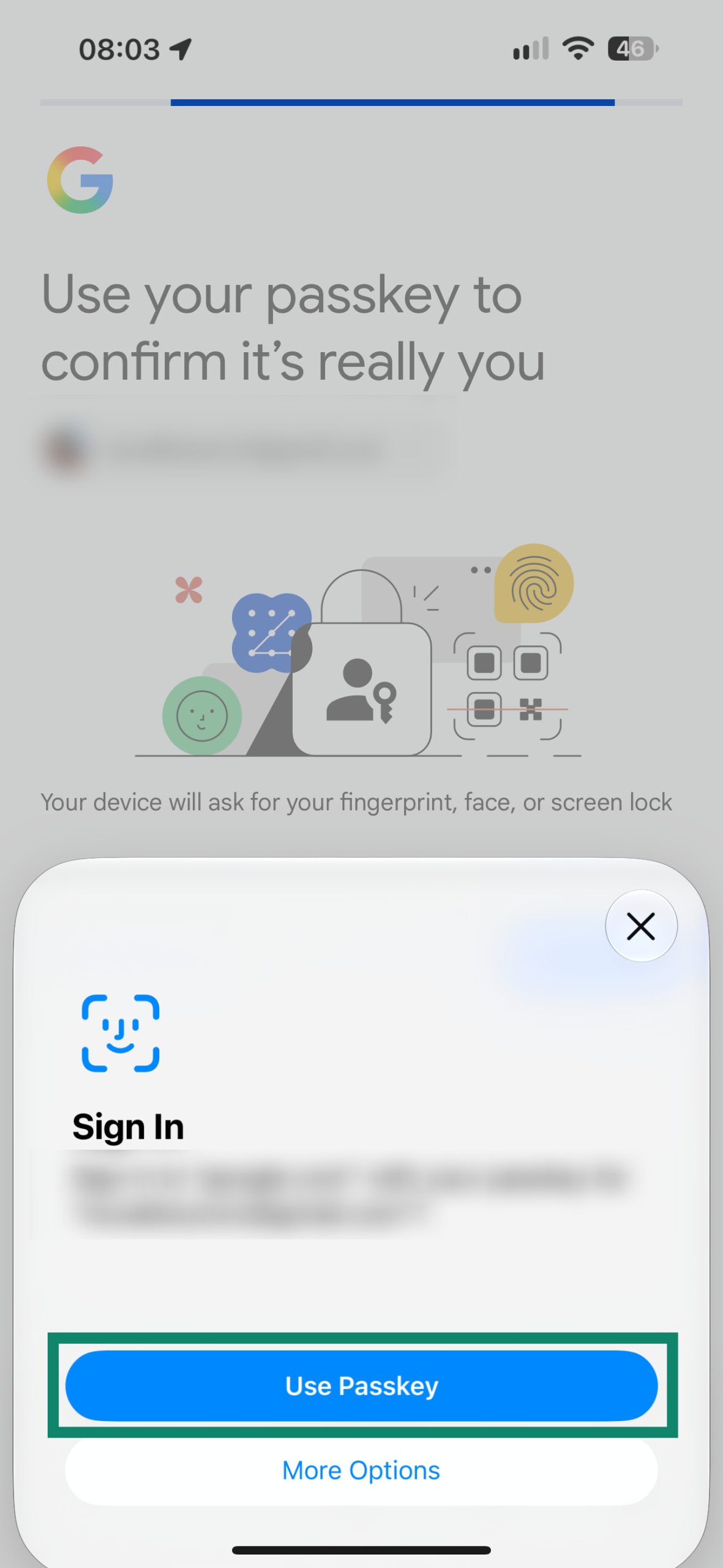
- Follow the prompts to use your saved passkey. If asked, unlock ExpressKeys to approve the request. The website or app will then verify the passkey and sign you in.
What about accounts that don’t offer passkeys?
For accounts that don't offer passkeys, a strong alternative is to use a unique password plus a code for two-factor authentication (2FA). ExpressKeys generates those codes itself, so you don't need a separate authenticator app. For detailed device and browser-specific instructions, see our full guide: How to add and generate 2FA codes in ExpressKeys.
If the site adds passkey support later, create a passkey for it, and ExpressKeys will offer to merge it with your saved login.
Secure your ExpressVPN account with a passkey
Your ExpressVPN account can use a passkey, too. The ExpressVPN+ portal, where you manage your subscription and products, supports passkeys, which you can create and store in ExpressKeys alongside your other credentials. Once set up, you can sign in to your ExpressVPN account without entering your password. The steps are the same on mobile and desktop:
-
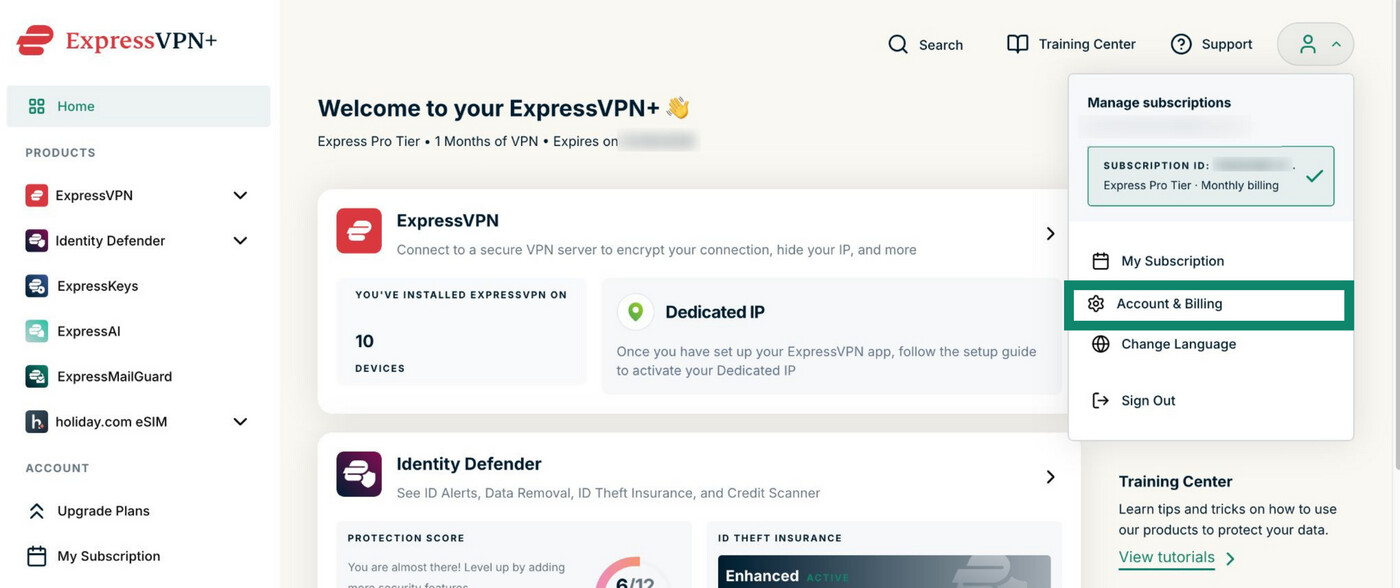
Log into your ExpressVPN+ dashboard and select Account & Billing.
![ExpressVPN+ dashboard with the account menu expanded and the Account & Billing option highlighted.]()
-
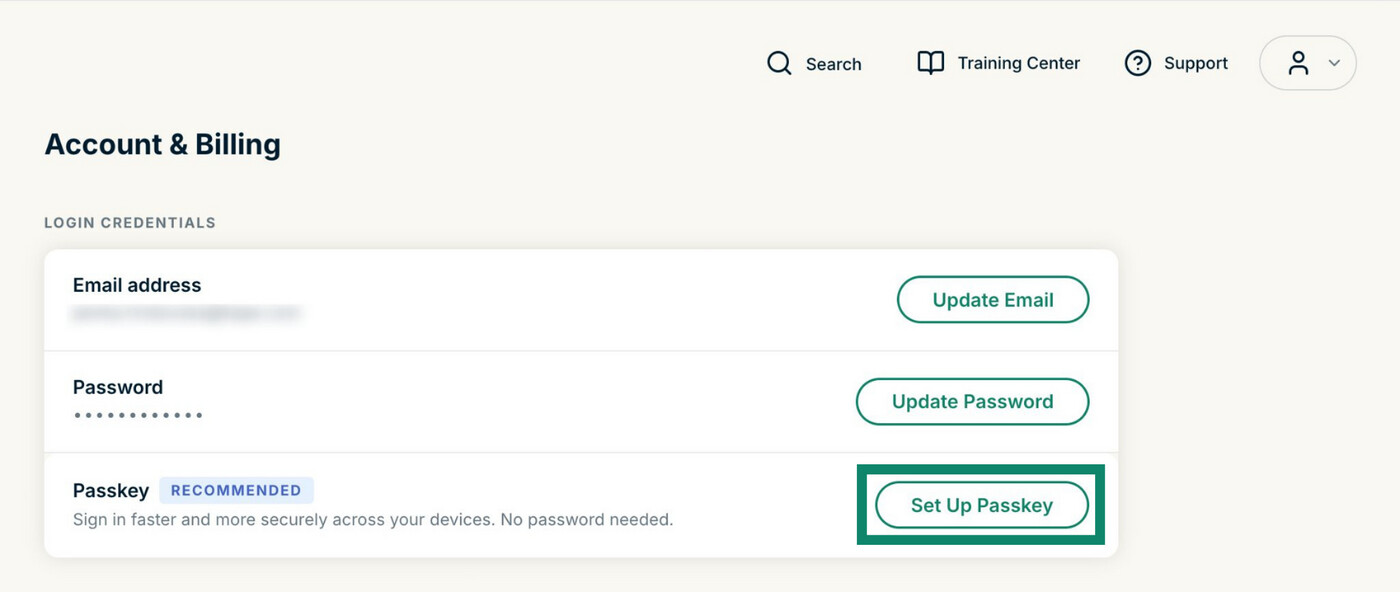
Select Set Up Passkey.
![ExpressVPN+ Account & Billing page showing login credentials and the highlighted Set Up Passkey button.]()
-
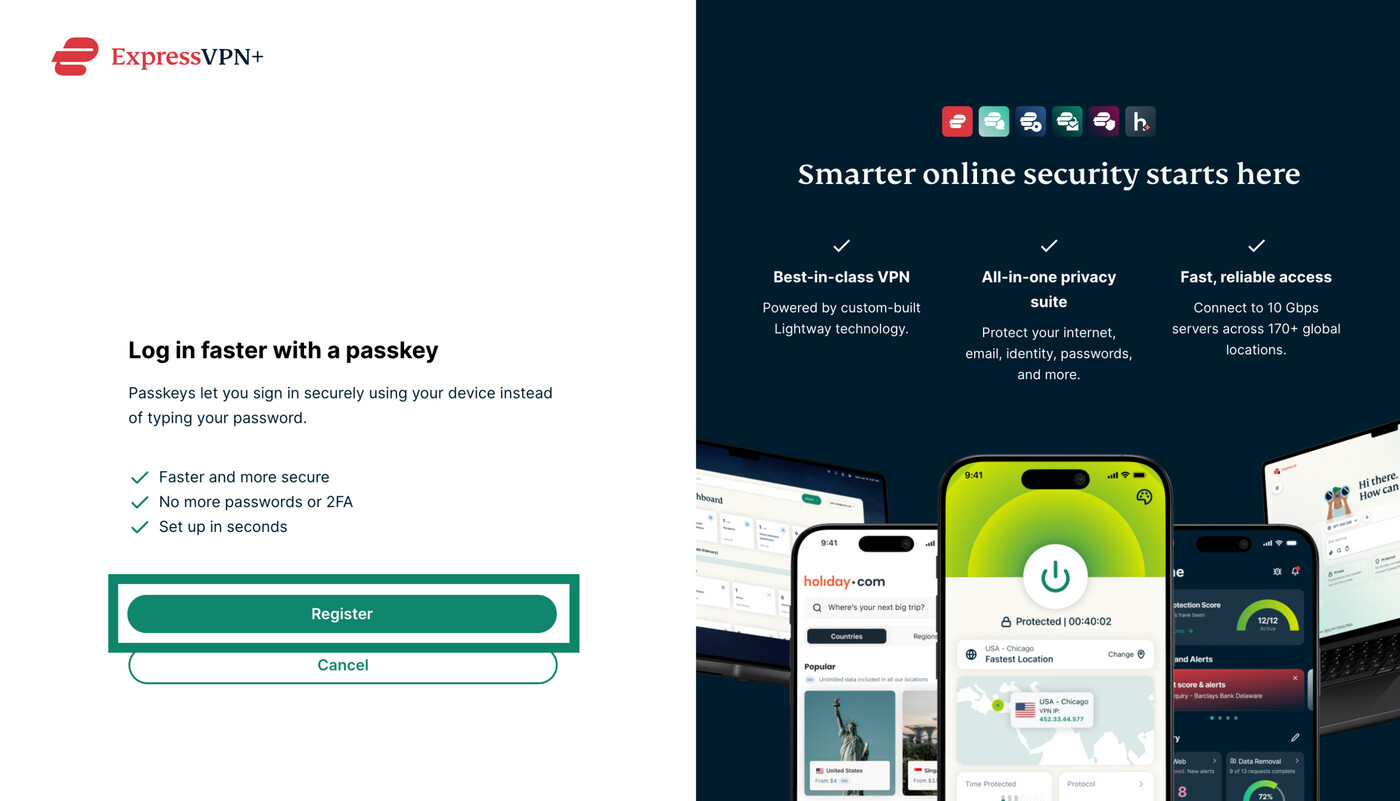
Choose Register. You may need to re-enter your password or a verification code sent to your email inbox.
![ExpressVPN+ registration page explaining passkey sign-in benefits, with the Register button highlighted.]()
-
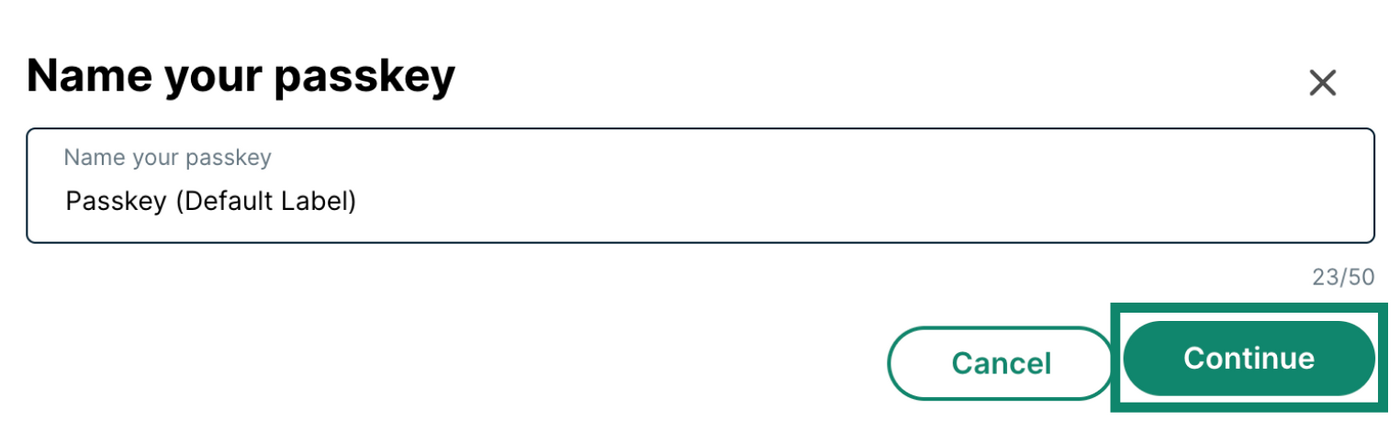
Follow the device’s prompt to create the passkey, choosing ExpressKeys if you want to save it in your vault. Lastly, name the passkey and select Continue.
![Passkey naming screen showing the default passkey name field, with the Continue button highlighted.]()
For further information about using a passkey for your ExpressVPN account, see the ExpressVPN+ passkey guide.
Limitations of passkeys
Passkeys remove the phishing and reuse risks that come with passwords, but they have a few limitations:
- Not every site supports passkeys yet: Many well-known online services offer passkeys, but plenty of smaller and older sites don't, so you'll still need passwords there.
- Passkeys don't always replace passwords completely: Many sites let you sign in with a passkey while keeping password-based login available. If someone steals or guesses that password, they may still be able to access your account without using the passkey.
- Account recovery can still be a weak point: If you lose access to your passkey, you may need to recover your account through an email link, recovery code, or another sign-in method. Anyone who compromises those alternatives could potentially bypass the passkey protection.
Why trust ExpressKeys to generate your passkeys?
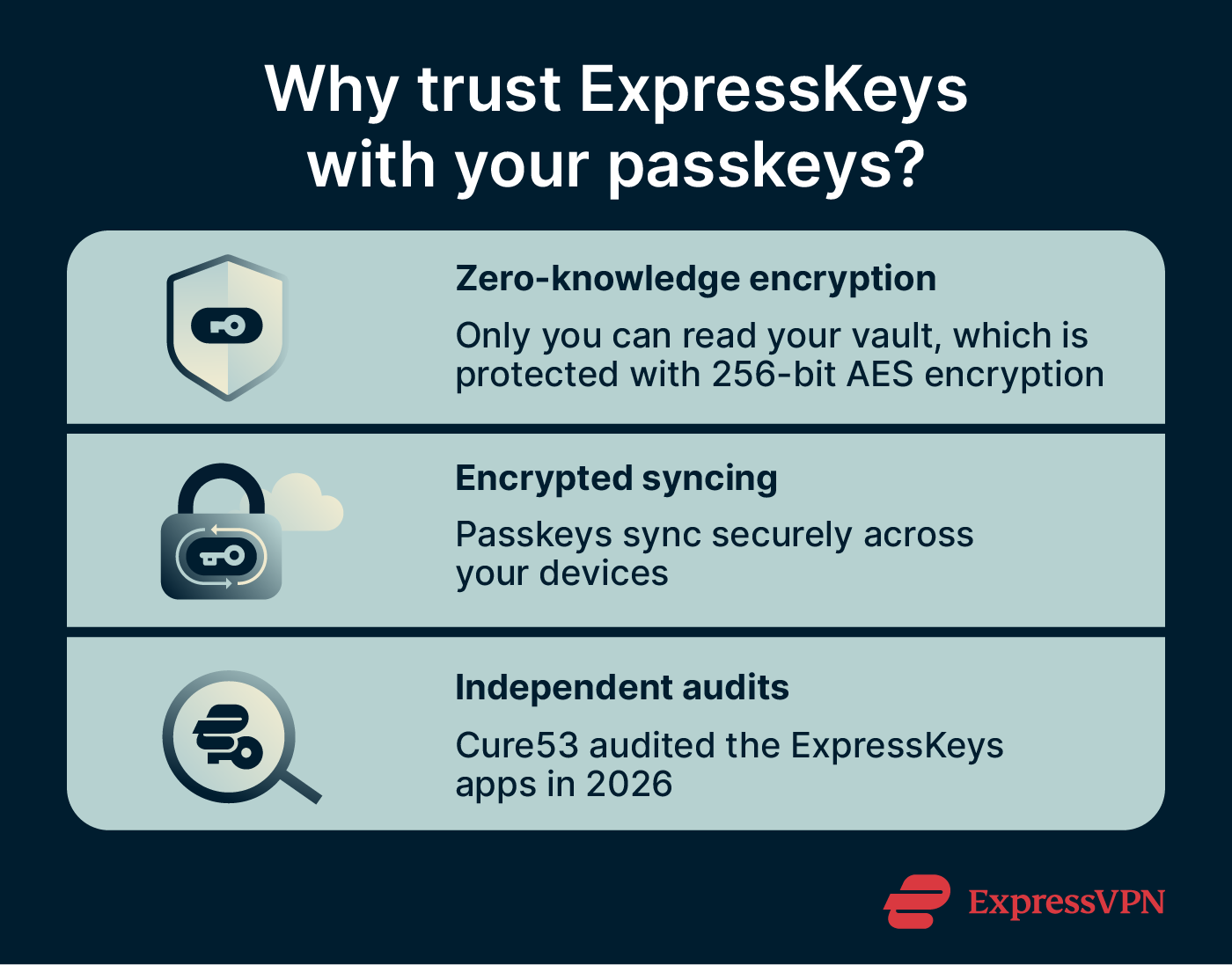
ExpressKeys encrypts your passkeys so only you can read them, including while they sync between your devices, and Cure53 has independently audited its iOS and Android apps.
Only you can read what’s in your vault
ExpressKeys uses zero-knowledge encryption, meaning only you can access the contents of your vault, passkeys included. Your vault is encrypted with 256-bit AES, a widely used encryption standard, and the key to it is protected by your vault password, which never leaves your devices. Neither ExpressVPN nor its cloud partner, Amazon Web Services, can decrypt it.
ExpressKeys decrypts your data locally on your devices. Biometric unlock, such as Face ID or a fingerprint scan, also happens entirely on your device, so sites receive the passkey's proof and never your face or fingerprint data. Signing in to ExpressKeys on a new device requires 2FA, so your vault password on its own isn't enough for an unauthorized person to open your vault.
Encrypted syncing across devices, with safe imports
When you create a passkey on one supported device, you can use it across your other supported devices, whether you're using ExpressKeys on iPhone, Android, or in a compatible browser. Your vault syncs across devices, with its contents encrypted in transit and decrypted locally.
ExpressKeys also supports direct credential imports from compatible providers using the FIDO Alliance's Credential Exchange standard. This means supported credentials can be transferred securely between apps without exporting them to a readable file. Available data and import methods vary by provider and platform, so check the ExpressKeys import guides for details.
Cure53 has independently audited ExpressKeys
Cure53, an independent cybersecurity firm, tested the ExpressKeys iOS and Android apps with full access to their source code. It found no High or Critical severity issues, and the report lists whether each of the 12 issues it did find has been fixed or mitigated. You can read the full Cure53 report; like any audit, it reflects the apps as they were when tested (in this case in early 2026).
Secure your accounts with passkeys in ExpressKeys
Passkeys in ExpressKeys give you faster sign-ins that resist phishing, with strong passwords and 2FA codes ready for any account that doesn't support passkeys yet.
Try ExpressKeys with eligible ExpressVPN plans, backed by a 30-day money-back guarantee for first-time users.