How websites use your location, and what changes with ExpressVPN


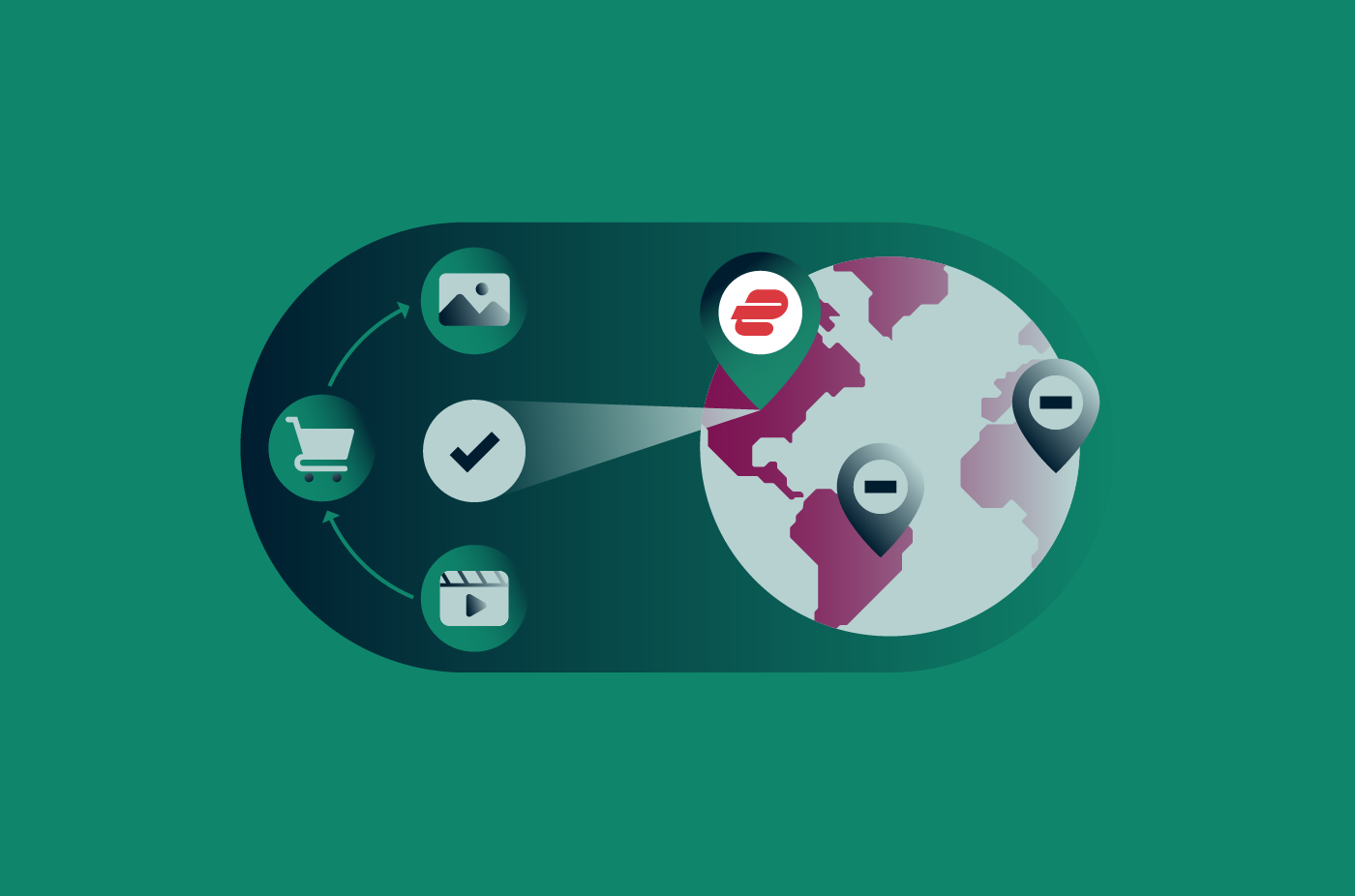
Websites can use your location to customize the content you see or to prevent cybercrimes like fraud. Location detection can also enable geoblocking, which is when a business limits access to a service based on the user’s estimated location.
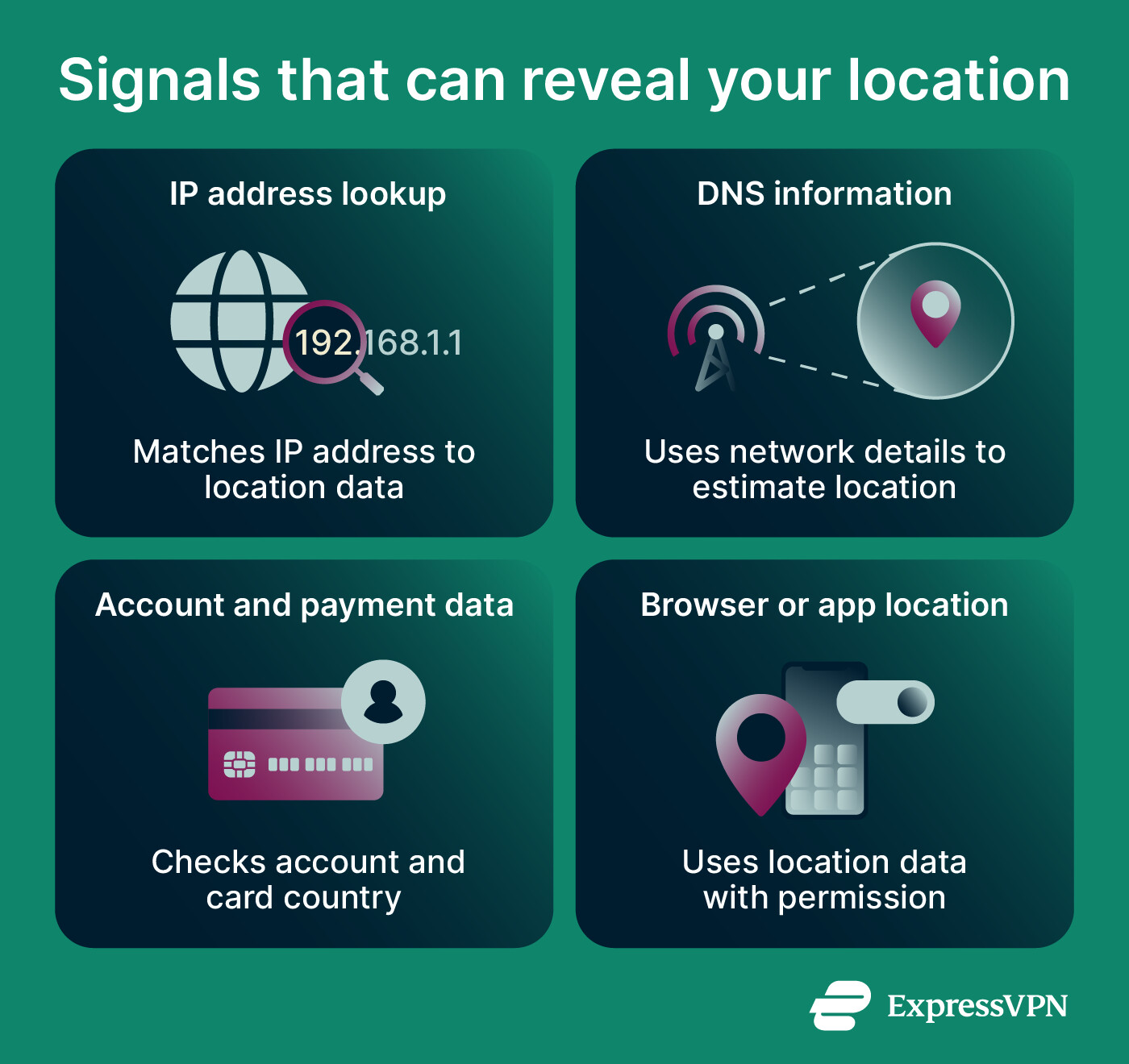
The main way websites estimate your location is by using your IP address. Other signals they use can include your device's location (obtained when you grant browsers or apps permission to access it), Domain Name System (DNS) information, and account or payment details.
ExpressVPN can keep your IP address hidden. When you connect to an ExpressVPN server, websites see a VPN IP address instead of your own. While this doesn’t affect other signals (such as your device’s GPS data, account country, or payment details), masking your IP address means there’s less of a trail connecting your browsing to your real location.
How websites work out your location
Here’s how the various signals a website might receive can help it determine your general location.
IP address lookups
An IP address is a numerical label assigned to your internet connection by your internet service provider (ISP) or network provider to identify it. When you visit a website, your IP address is included in the request, allowing the site to see it.
On its own, an IP address doesn't contain location data. However, websites can look it up in a geolocation database (such as MaxMind and IPinfo) that links IP address ranges to approximate geographic locations. This can usually give the website a reliable indication of what country you’re browsing from, though it’s less reliable at determining the exact city.
Browser and app location permissions
With your permission, browsers and apps can use information from sources such as GPS, nearby Wi-Fi networks, and cell towers in a process called triangulation to determine your precise position. For example, a map service might request permissions to show your current location or provide directions from where you are.
Websites can request this information through the browser's Geolocation API, a capability commonly known as HTML5 geolocation.
DNS and WebRTC signals
When you enter a website address into a browser, your device sends a request to a DNS resolver to find the corresponding IP address. This tells the browser where it needs to connect to access your chosen webpage. In some situations, website or infrastructure owners can see the location of the DNS resolver your request came from, giving them a hint at your general location.
WebRTC is a technology that supports real-time communication features like voice and video calls. To establish connections between devices, it uses network information that includes IP addresses. Depending on how a browser and network are configured, this process can expose your IP address to a website.
Account and payment signals
Other information that can affect how websites detect your location includes:
- Account details: Sometimes accounts are automatically linked to a country or region upon signup. You may also be asked to provide your billing address or other details that could reveal your location, such as your phone number.
- IIN/BIN checks: When you make a payment, a service can use your card’s Issuer Identification Number (IIN), also known as a Bank Identification Number (BIN), to determine the country where the card was issued.
How websites use your location data
One common use of location data is geoblocking, which allows websites and online services to limit or change access to products or services based on a user’s location. For example, a streaming service may offer different content catalogs in different countries.
Websites also use location data to personalize content. If they can estimate your location, they can customize your experience, such as showing local weather forecasts or recommending nearby businesses.
Finally, location data can help with fraud prevention. For example, online banking services may flag a login attempt from an unexpected location as potentially suspicious because it could indicate that an unauthorized person is trying to access your account.
What changes when you connect to ExpressVPN
A VPN helps improve your online privacy by routing your internet traffic through a remote server before it reaches its destination (e.g., a website). This, along with other features offered by ExpressVPN, can affect the location signals websites receive. Learn more about how VPNs work.
| Signal | What changes with ExpressVPN |
|---|---|
| IP address | ExpressVPN hides your actual IP address behind an IP address belonging to the VPN server you’re connected to. For example, when you're connected to an ExpressVPN server in Germany, websites think you’re browsing from Germany. |
| DNS | ExpressVPN uses private DNS on every server, so your DNS requests are handled by us instead of your ISP’s DNS resolver. This helps prevent your usual network location from being associated with your DNS requests. |
| WebRTC | ExpressVPN’s apps stop WebRTC from leaking your IP address on pages that you open after you connect to the VPN. ExpressVPN’s browser extension allows you to turn WebRTC off completely. Note, however, that turning WebRTC off may cause features like browser-based video calls and screen sharing to stop working. |
| HTML5 geolocation | While it’s possible to decline HTML5 location requests in your browser, some websites won’t load properly if you don’t share your location. ExpressVPN’s Spoof your location feature, available on our browser extensions, helps by giving sites your VPN server’s location instead, so you don’t have to decline the request. |
ExpressVPN can’t change your device’s GPS data, an account’s registered country, your payment card’s issuing country, or location information you’ve voluntarily provided to the site while logged in.
How to check what location websites can see
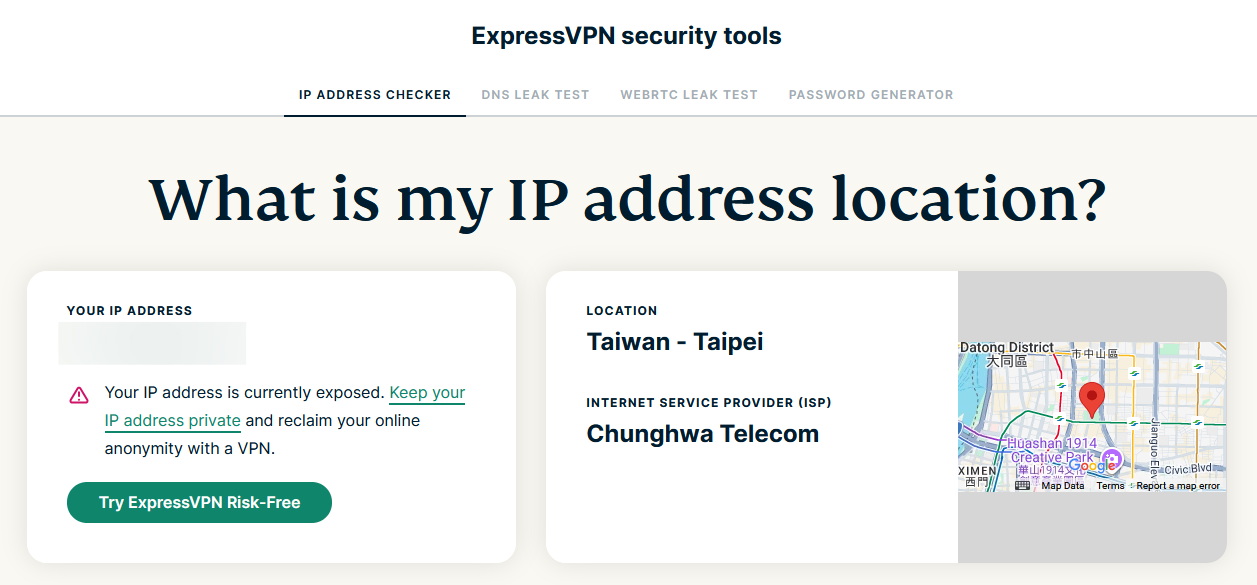
You can use ExpressVPN’s IP Address Checker to see what your IP address reveals to websites. The tool displays your detected IP address, approximate location (country and city), and ISP.
How to check what location websites see with ExpressVPN
To check your location data is hidden while connected to ExpressVPN, follow the steps below:
-
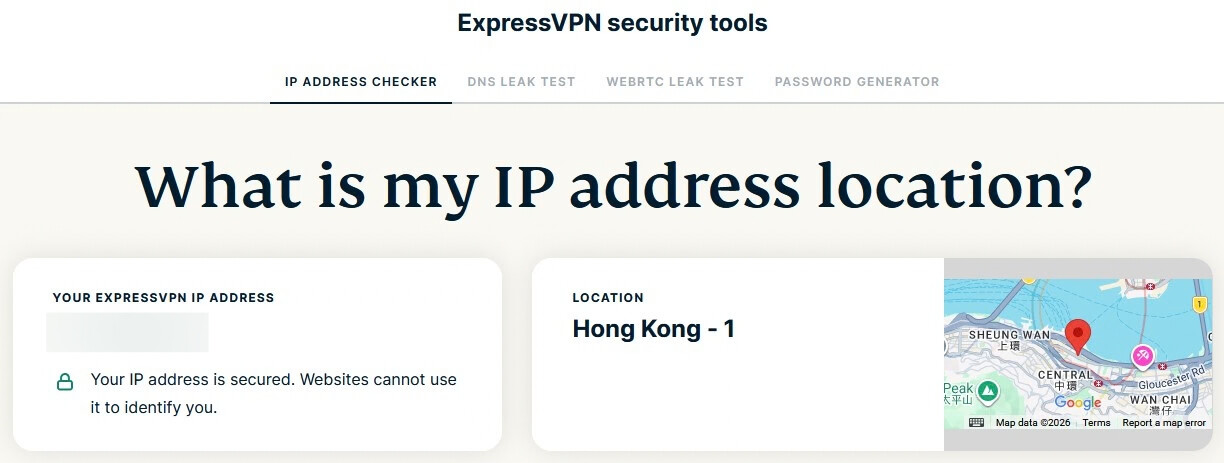
Connect to an ExpressVPN server and open the IP Address Checker. You should see an ExpressVPN IP address, and the location should reflect the location of the VPN server you’re connected to.
![ExpressVPN IP Address Checker results while connected to ExpressVPN.]()
-
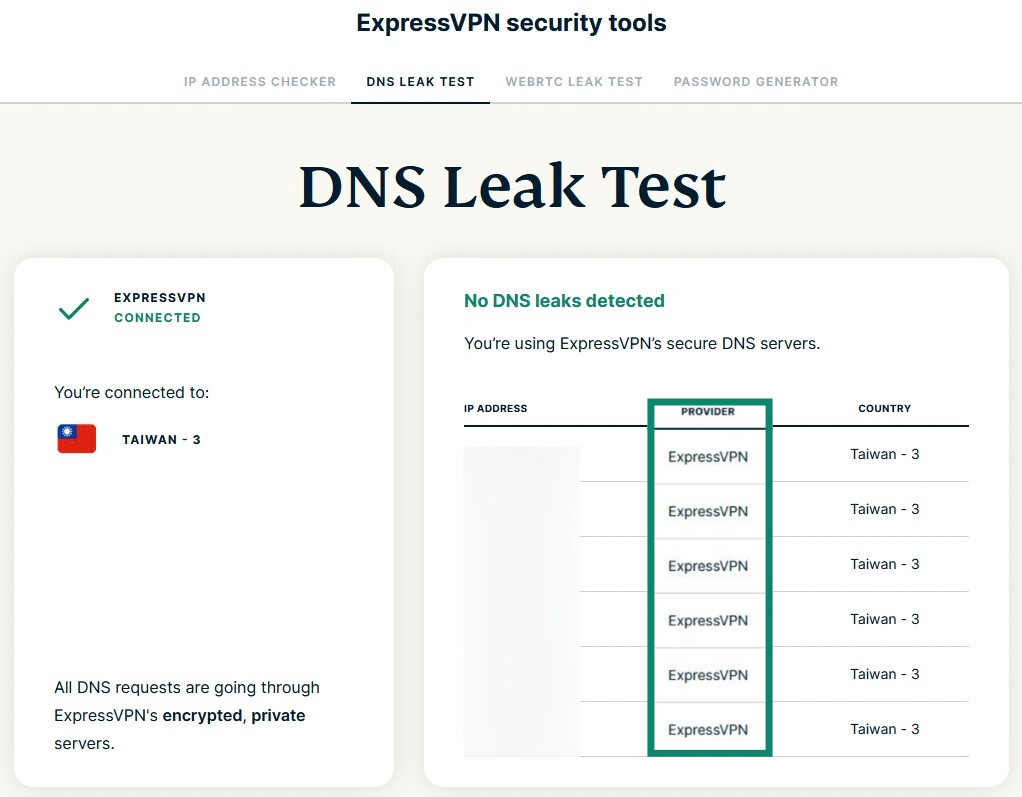
Run the DNS Leak Test and check which DNS servers are handling your requests. The provider should be ExpressVPN rather than your usual DNS provider.
![ExpressVPN DNS Leak Test results while connected to the VPN, with the provider column highlighted.]()
-
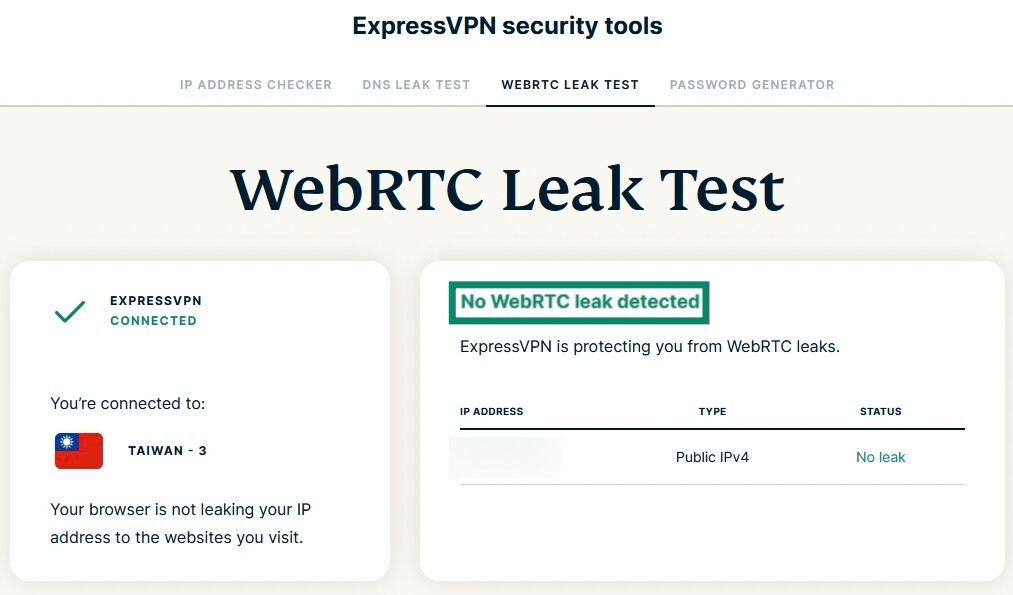
On desktop, open the ExpressVPN browser extension, go to Settings > Privacy & Security, and ensure Block WebRTC is toggled on. Then run a WebRTC Leak Test. It should state "No WebRTC leak detected."
![ExpressVPN WebRTC Leak Test results while connected to the VPN with "No WebRTC leak detected" highlighted.]()
How to spoof your location with the ExpressVPN browser extension
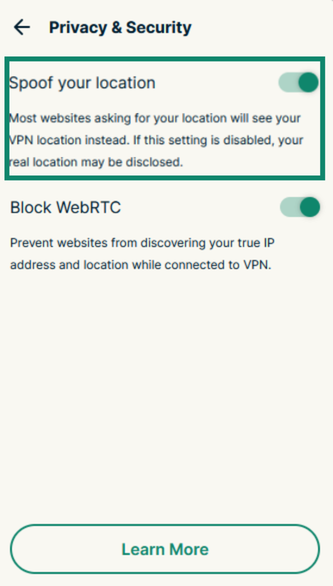
Go to Settings > Privacy & Security and ensure Spoof your location is toggled on.
It’s also a good idea to review the sites that have location permission in your browser. See the support pages of Chrome, Firefox, and Edge for instructions on managing location permissions in each browser.
Keep your location consistent when it matters
For services that use your location as a fraud-prevention signal, such as online banking, logging in from an unfamiliar location can trigger requests for additional verification. To reduce the likelihood of this happening:
- Connect to a VPN server in your home country when you travel, so the service sees a familiar location.
- Get a dedicated IP address so the service sees a consistent IP address every time you connect, rather than a different one each time. ExpressVPN offers dedicated IP addresses in 29 locations. It’s included with Express Pro and can be purchased as an add-on for the Basic and Advanced plans.
- Use ExpressVPN’s split tunneling feature to choose which apps or sites go through the VPN and which connect directly to the internet. For example, you can exclude your banking app from the VPN, reducing the chance of triggering additional fraud checks.
Why a site may still show the wrong location
If a website shows a different location than the ExpressVPN server you’re connected to, that doesn’t necessarily mean ExpressVPN isn’t working. ExpressVPN can still be masking your real IP address and encrypting your traffic, while the site shows a different location for another reason.
- Database lag: A website may be using an outdated IP geolocation database that still associates the ExpressVPN server’s IP address with a different location.
- Private databases: Some companies maintain their own IP geolocation databases that ExpressVPN can’t update.
- Location permissions: If you’ve given a website permission to access your location through other means, it may use that information instead of your IP address to determine where you are.
If you're using ExpressVPN with a Google service and it's showing the wrong location, see this support guide for help: Google shows a different location from the one I’m connected to on the VPN.
Want more control over what websites know about your location?
ExpressVPN masks your IP address, helps prevent WebRTC leaks, and lets you spoof your browser’s location to help limit the location information websites can use to identify you.
Browse more privately with ExpressVPN
Try ExpressVPN risk-free with our 30-day money-back guarantee for new users.
FAQ
Does ExpressVPN hide my real location?
That said, ExpressVPN doesn’t change other signals websites can use to determine your approximate location, such as your device location data, your account’s registered country, or your payment card’s issuing country.
Why does a website show a different country than the ExpressVPN location I chose?
Can websites tell I'm using a VPN?
However, this doesn’t mean they can see the contents of your traffic. Your internet traffic is encrypted as long as you’re connected to ExpressVPN.
Does ExpressVPN change my location on my phone?
However, it doesn’t change your device location data, such as your phone’s GPS location, so if you give an app location permissions, it may still be able to determine your actual location. You can check and manage which apps have permission to access your location in your phone’s settings.