How to check your Android device's security with ExpressVPN


ExpressVPN encrypts traffic between your device and our servers, but it can’t protect data on a phone that is itself compromised. That’s why our app includes Secure Device Assistant, which lets you check five security details on your phone: your Android version, screen lock settings, biometric sign-in, root status, and disk encryption.
How to open Device Assistant and check your Android’s security
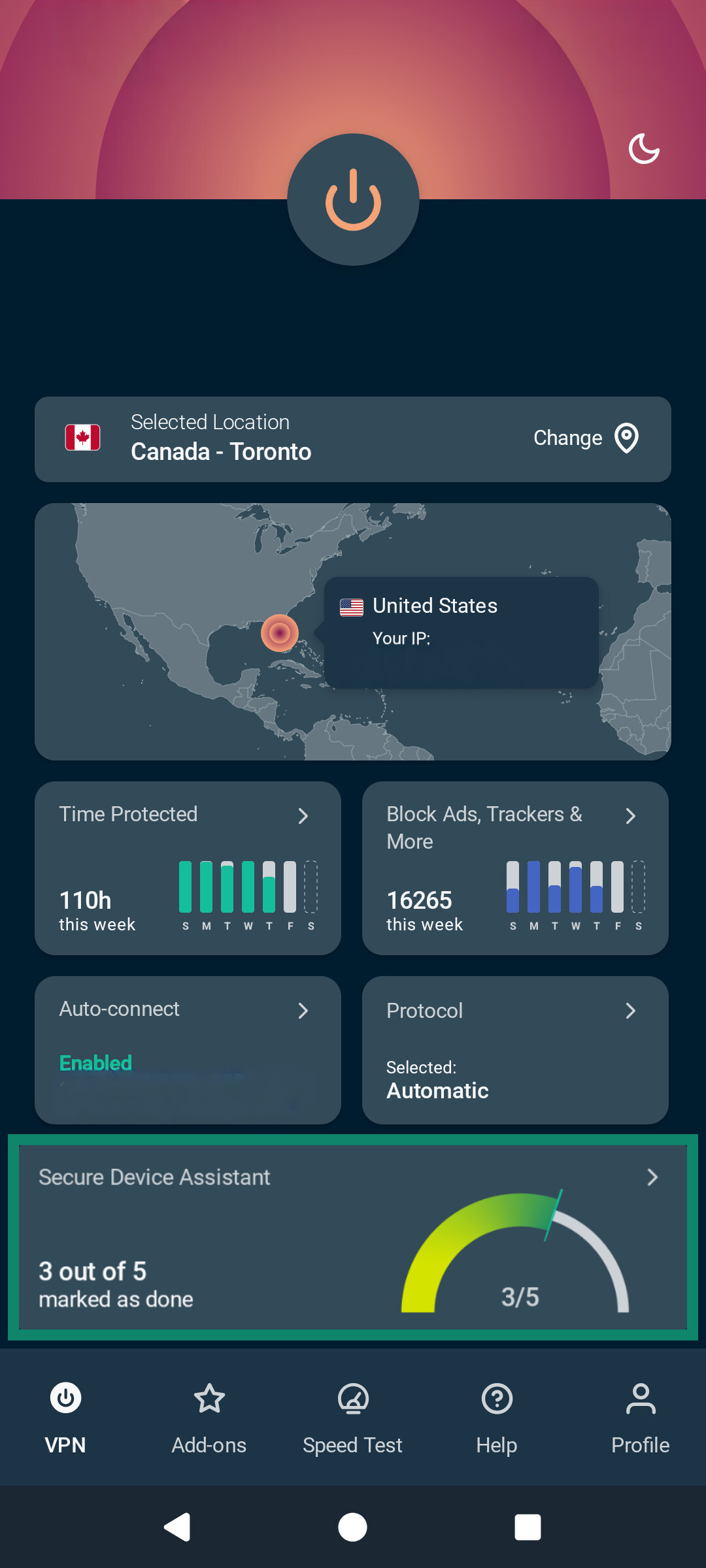
In the ExpressVPN app for Android, go to the VPN tab and tap the Secure Device Assistant widget.

If you haven’t set up ExpressVPN on Android yet, our complete guide walks you through installing and connecting the app.
What Secure Device Assistant checks on Android
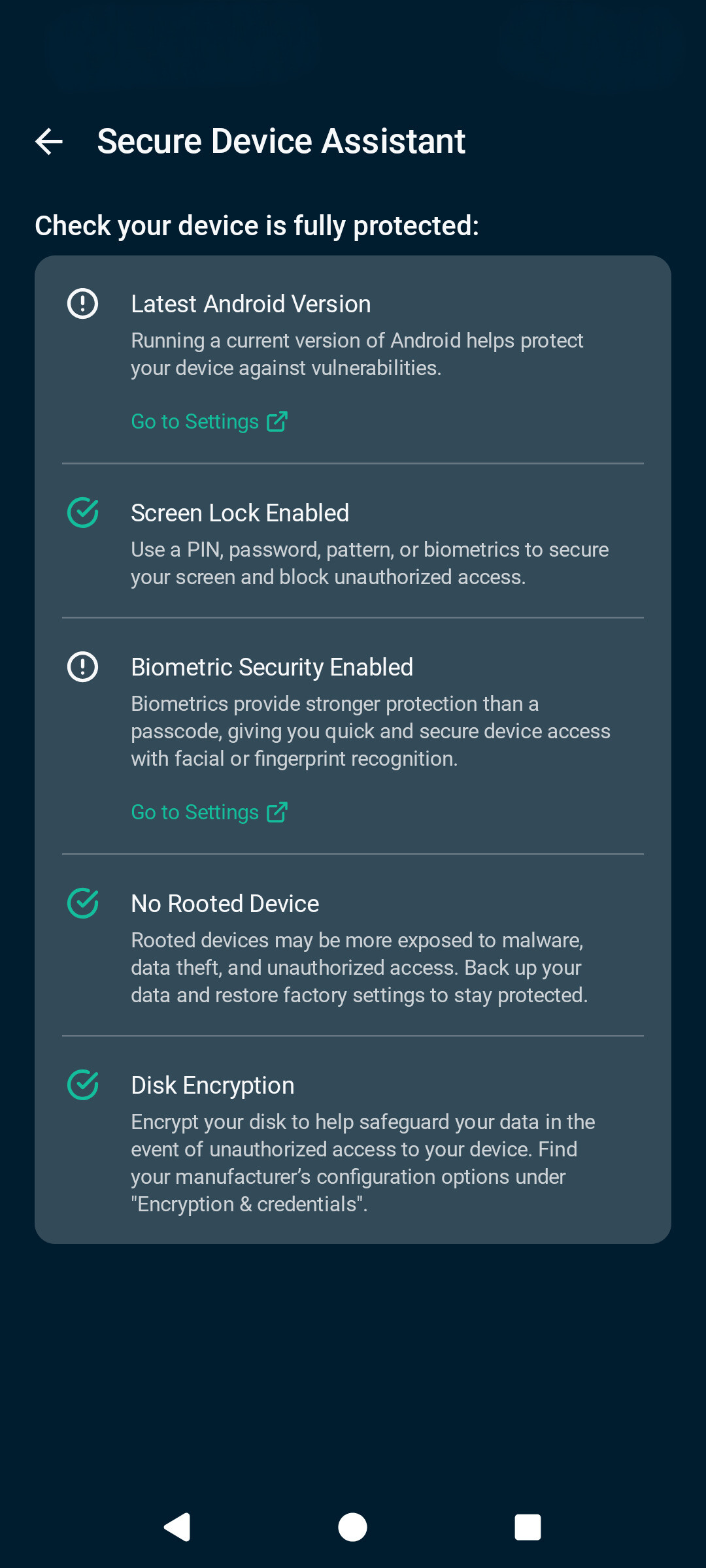
Secure Device Assistant shows the following information about your device:
| Check | What it checks | Why it matters |
|---|---|---|
| Latest Android Version | Are you running the latest version of the Android operating system? | Android updates help address security vulnerabilities on your device. |
| Screen Lock Enabled | Is your screen secured with a PIN, password, pattern, or biometrics? | A screen lock helps prevent someone from using your phone without permission. |
| Biometric Security Enabled | Is facial or fingerprint recognition enabled? | Biometric unlock means you type your PIN or password less often, so there are fewer chances for someone nearby to see it. Your screen lock stays in place as the backup. |
| No Rooted Device | Is your phone rooted? | Rooting can weaken Android’s built-in protections and affect ExpressVPN’s ability to protect your privacy. |
| Disk Encryption | Does your phone have built-in methods to encrypt stored data? | Encryption keeps the files stored on your phone unreadable to someone who gets hold of the device without your screen lock. Phones that launched with Android 10 or later are required to use file-based encryption, so this check mostly matters for older phones. |
These checks run automatically when the widget is opened. If the assistant identifies an issue, it provides instructions for changing the relevant setting yourself. Checks that pass show a check mark. Checks that need attention show a warning icon, and some include a Go to Settings link that opens the relevant Android setting.
What the "Rooted device detected" warning means
Secure Device Assistant displays a warning when it detects that your Android phone is rooted. Rooting an Android device means gaining "root" access (the highest level) to the operating system, removing the safety restrictions Android normally places on apps and users.
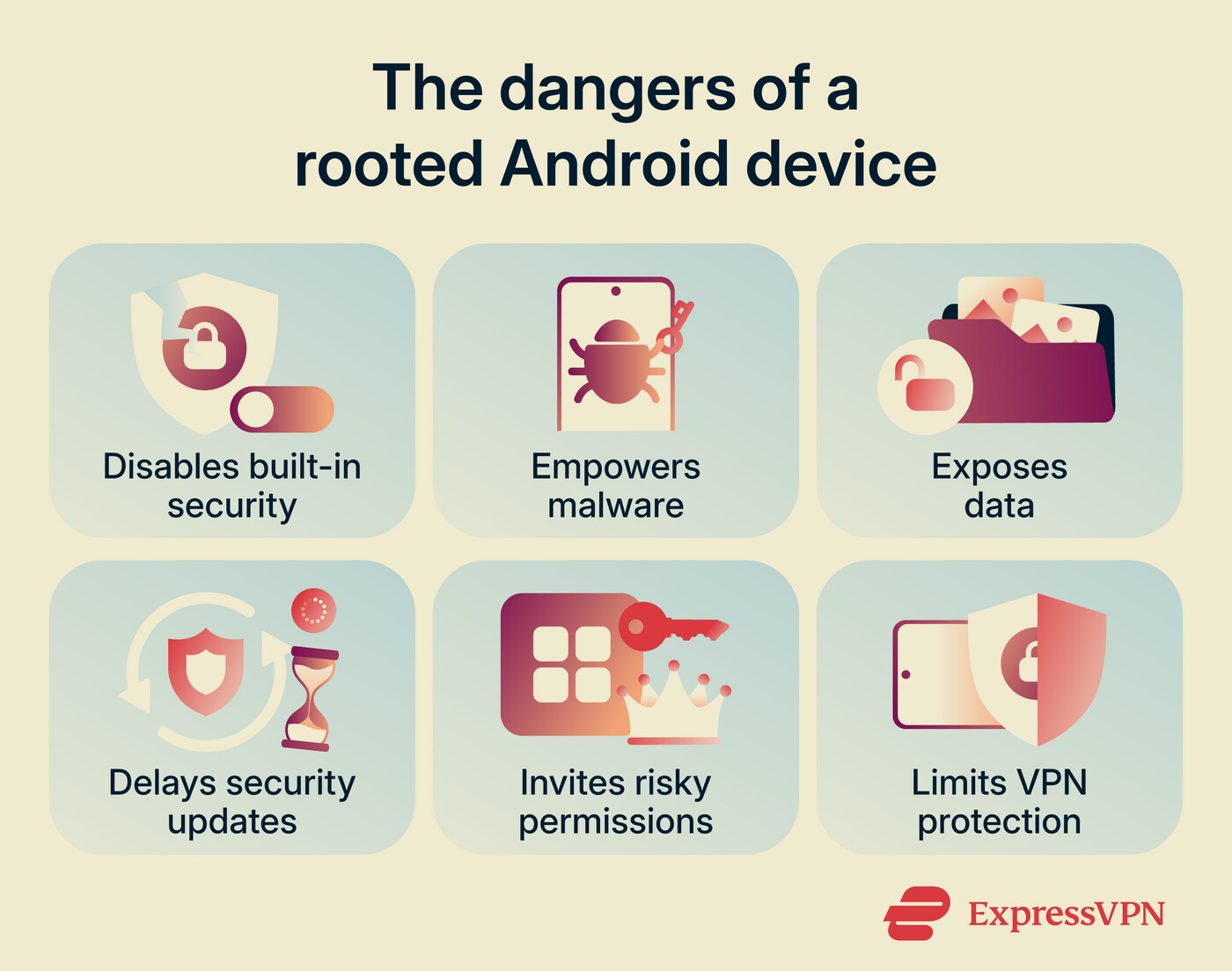
Rooting can limit the protection ExpressVPN provides. Android normally keeps apps isolated from each other through a system called sandboxing. On a rooted phone, an app that’s granted root access can get around that isolation, so malware with root access could read data before ExpressVPN encrypts it or change where your traffic is sent.
Sometimes a non-rooted phone may trigger the warning by mistake. If you know your phone isn’t rooted, you can tap Accept Risks and ignore it. Contact Support if the warning keeps appearing or if you’re unsure about your device’s root status.
ExpressKeys, our password manager included with Advanced and Express Pro plans, also displays its own warning on rooted Android devices because stored logins are less secure on those devices. See this ExpressKeys Support article for details.
If your phone is rooted, it’s best to disable root access in the root manager app you used. If that isn’t possible, you can restore the phone’s original firmware. Make sure to back up your important files first, because restoring firmware can erase your data. See our Support article on rooted devices for detailed guidance.
What these checks don't cover
Secure Device Assistant checks specific device settings; a positive result doesn’t establish that your phone is fully protected or free of malicious apps. ExpressVPN encrypts traffic between your device and our servers and masks your IP address, but it can’t secure an already compromised phone or restore the protections removed by rooting.
To fill part of that gap, the Android app has a separate feature: Advanced Protection. It blocks connections to known phishing, malware, and fraudulent domains while the VPN is connected and blocks known trackers. It’s off by default, so turn on the protections you want under Add-ons > Advanced Protection. It isn’t an antivirus, bear in mind, so it won’t find or remove malicious apps already on your phone.
Secure your Android device with ExpressVPN
ExpressVPN’s Secure Device Assistant helps you identify Android security gaps that could compromise your device and your online safety.
Check your device with ExpressVPN
Try it risk-free with our 30-day money-back guarantee for new users.